Pixel 6–11 Network Unlock with Root: GSM6 Tool Guide
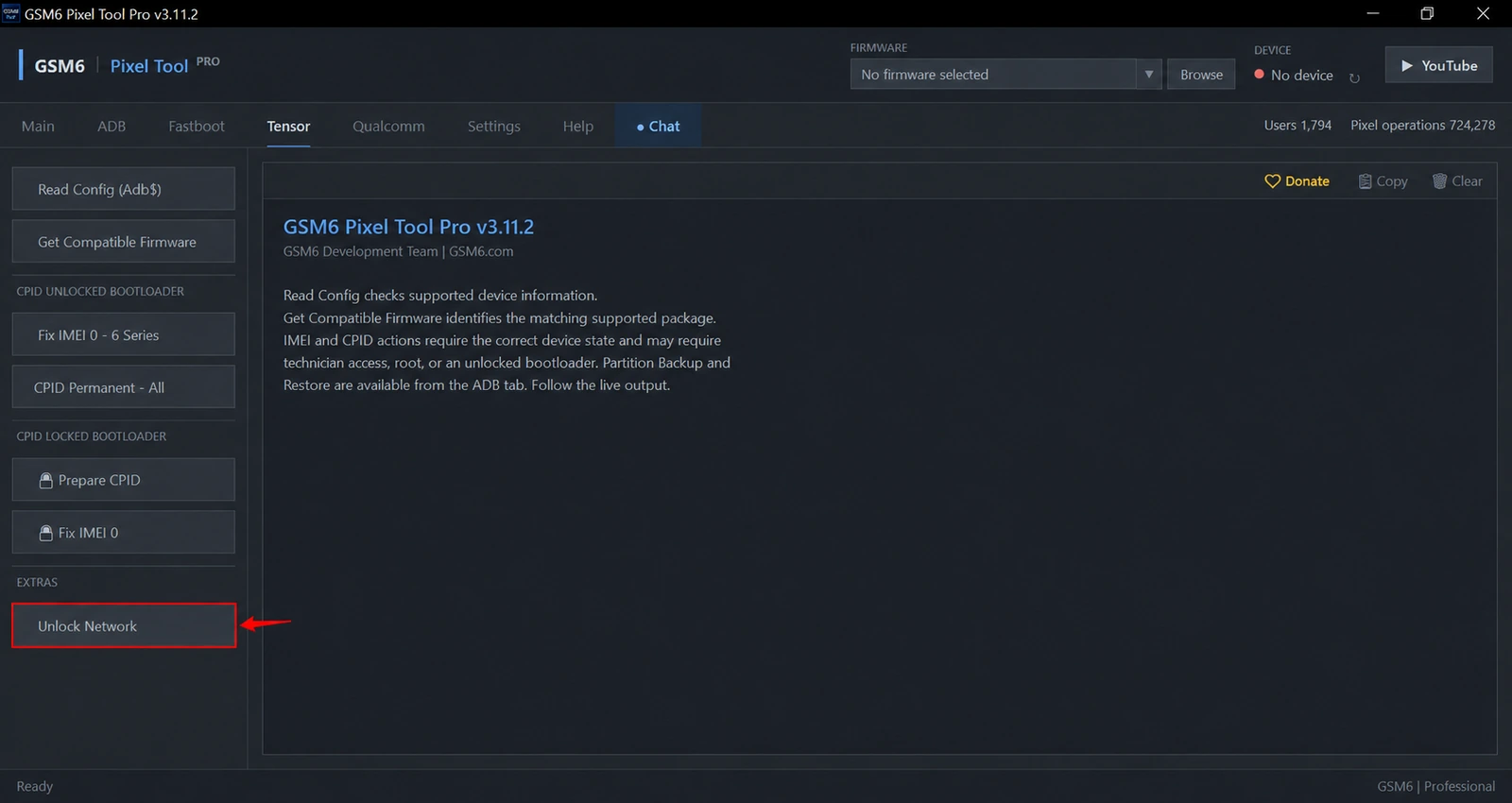
GSM6 Pixel Tool Pro provides a one-click Network Unlock workflow for supported rooted Pixel 6–11 Tensor devices. The standalone button is in the Tensor tab. The phone must already have a supported root environment; connecting an ordinary unrooted phone is not enough.
Start with the GSM6 Pixel Tool Pro feature page for the current version and access options. This guide explains the preparation, the difference between network and bootloader locks, and what to check when OEM Unlocking is greyed out.
Use the feature only on a device you own or have permission to service, and where the carrier and contract allow the work. Network service does not cancel an unpaid contract, remove a stolen-device blacklist or repair every mobile-radio fault.
Network unlock is different from bootloader unlock
These terms are often mixed together, but they describe different conditions.
| Term | What it concerns |
|---|---|
| Network or SIM restriction | Which mobile network the device can use |
| Bootloader lock | Whether the device accepts permitted firmware changes |
| Root | Elevated access inside the running Android system |
| IMEI/baseband fault | Device identity or radio operation, requiring its own diagnosis |
An unlocked bootloader does not automatically mean the phone is network unlocked. Likewise, mobile service failing with a particular SIM does not prove a carrier restriction. Check account activation, SIM condition, local network coverage and the device’s radio state before selecting a repair.
The existing Pixel carrier-unlock guide is useful background for separating carrier policy from a tool operation.
Supported Tensor families and root requirements
The product’s Network Unlock coverage targets Pixel 6, 7, 8, 9, 10 and 11 Tensor families and eligible Fold models. Device/build checks still apply. A broad family listing does not remove the need for a working root environment on the actual phone.
Use the root path appropriate to the device:
- Root (LIVE) for an eligible exact-build workflow, including supported beta firmware.
- Root (Direct) when you already have matching firmware.
- Root (Locked BL) for temporary access on explicitly listed locked-bootloader builds.
Rooting and network service are separate operations. Some root paths erase data or require an allowed bootloader unlock, so prepare the phone before treating Network Unlock as a quick single-button job.
What if OEM Unlocking is greyed out?
A greyed OEM Unlocking control does not establish why the restriction exists, and GSM6 does not promise to bypass it. Check the legitimate device and carrier status first.
Where the phone runs an exact supported locked-bootloader build, the temporary Locked BL root route can provide eligible service access without the standard unlock flow. It is build-specific and does not apply to every phone with a greyed toggle.
Open the published supported-build list and compare the complete codename/build pair. If your build is absent, do not borrow a profile from a similar model or downgrade without checking the device’s restrictions.
Before the network operation
Use a current tool release and active paid Pixel access. Connect one phone, authorize USB debugging and ensure the selected root manager or supported temporary-root session is working.
Install the Google USB driver for Windows if the phone is missing or unstable in ADB. Keep the display unlocked for permission prompts and maintain the USB connection throughout the operation.
Record the initial mobile-service symptoms. A useful job record includes the model, complete build, whether the device sees the SIM, whether the radio is present, and what the network status reports. Do not post customer identifiers publicly in screenshots.
How to run GSM6 Network Unlock
- Confirm ownership, authorization and carrier eligibility.
- Back up important data before any preceding root or repair operation.
- Prepare a supported root environment using the appropriate guide.
- Open GSM6 Pixel Tool Pro, sign in and connect the authorized phone.
- Use Read Info or Read Config and confirm the detected device.
- In Tensor, select Unlock Network from Extras.
- Accept the operation’s requirements and keep the phone connected until the final result.
- Follow the requested restart, then test with an active compatible SIM.
The same supported network option may be offered during eligible CPID preparation. That does not mean every network-unlock job requires identifier repair. Use the standalone option when that is the service being requested.
Verify the result instead of assuming it
After the operation, check network registration, a normal call and mobile data with an appropriate active SIM. A tool success message is part of the evidence; real service testing completes the job.
If registration still fails, investigate SIM activation, supported bands, account status and radio configuration. Do not repeatedly write service data to solve a billing or coverage issue. A permanent zero identifier or radio-off fault needs its own diagnosis rather than being labelled a SIM lock.
For a failed operation, copy the complete output and contact GSM6 Support. State whether root was persistent or temporary and whether the phone rebooted after root was established.
Does Network Unlock work without root?
No. The GSM6 Tensor Network Unlock workflow requires a supported root environment.
Can I use temporary root on a locked bootloader?
An eligible temporary-root session may be used where the exact model/build is supported. Check the Locked BL compatibility list first.
Does this remove a blacklist or unpaid contract?
No. Device ownership, carrier policy, account balance and blacklist status are separate from the supported network-service operation.