Pixel Secure Flash: A Desktop Alternative to Android Flash Tool
GSM6 Secure Flash installs a complete matching stock firmware package from a Windows desktop workspace and provides the preparation needed for supported bootloader relocking. It is useful when you already have downloaded Pixel firmware and want a guided alternative to running the installation through flash.android.com.
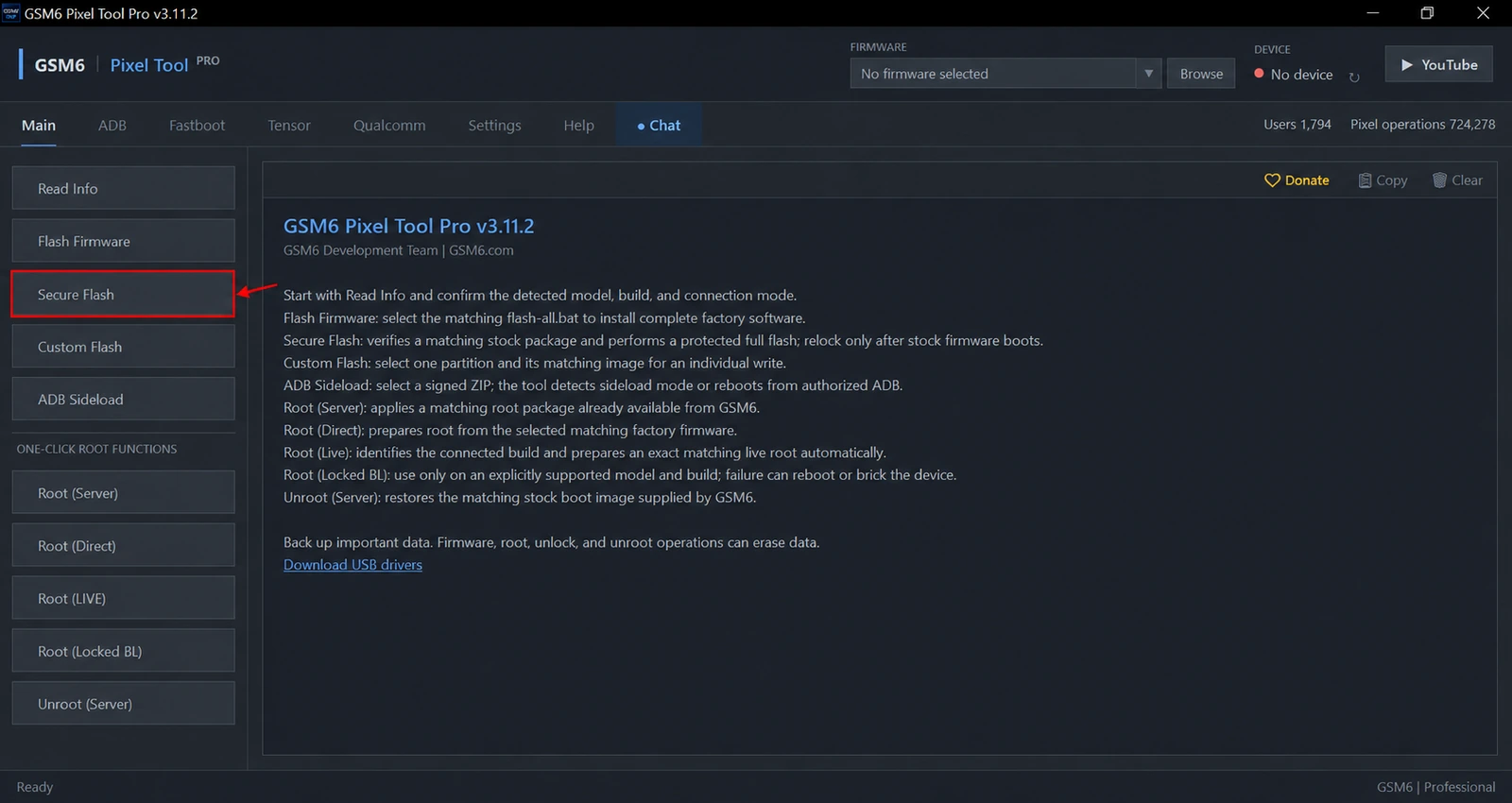
The feature is in the Main tab of GSM6 Pixel Tool Pro. It brings package selection, device checks, stock flashing, progress and final instructions together. For supported Pixel 7–11 devices, including eligible Fold models, completing the stock workflow lets you review relocking after the first successful boot.
Back up first: firmware installation and bootloader changes can erase all user data. Never use relocking to test whether an incomplete installation is safe.
What “Android Flash Tool alternative” means
Android Flash Tool is a browser-based firmware installation workflow. GSM6 Secure Flash is a desktop workflow that uses the complete compatible firmware you have selected locally. The practical comparison is how the technician supplies the package and manages the job.
It does not mean that the two products are affiliated, that every internal step is identical, or that GSM6 can bypass device restrictions. The tool still needs an eligible phone and an exact compatible stock package.
| Question | Secure Flash approach |
|---|---|
| Where is it started? | Main tab in the Windows tool |
| What firmware is selected? | Complete matching stock firmware, already extracted locally |
| Is a browser flashing session required? | No |
| Can it help prepare for relocking? | Yes, after a successful complete stock installation on supported devices |
| Does it erase data? | Yes, destructive stages must be expected |
| Is it completely internet-free? | No; sign-in, paid authorization and service checks can require internet |
The official Android Flash Tool documentation describes the browser option. For readers comparing both workflows, GSM6 also has an Android Flash Tool guide.
Local firmware is not the same as fully offline
Searches for “offline Pixel flash tool” often mean “use a firmware package already on my computer.” Secure Flash supports that local-package workflow. This can be convenient in a workshop where packages are prepared in advance.
However, a local ZIP or extracted folder does not remove every network dependency. Keep internet available for the GSM6 account, activation and required service checks. Do not begin a customer’s job expecting the whole application to work air-gapped.
Also distinguish a complete factory-image package from an OTA update ZIP. An OTA belongs to the appropriate recovery/sideload workflow. Supplying the wrong package type to a full-flash operation is not a download-speed problem.
Requirements and firmware selection
Use the current tool with paid Pixel access, working USB drivers and enough disk space for both extracted firmware and temporary work. The detected model and codename must match the package.
Extract the firmware completely. Use the tool’s firmware selector to choose the required factory source, typically the extracted folder containing its flash script. Read the detected and selected build information before approving anything.
Install the Google USB driver for Windows if detection fails. Windows can recognize Android but still need attention in bootloader mode, so check both states before beginning a long flash.
Avoid random repacks, packages for a related model and undocumented downgrades. Firmware compatibility includes version restrictions as well as the model name. The official factory-image page carries release-specific notes that should be reviewed when choosing stock firmware.
How to flash a Pixel with Secure Flash
- Back up all customer data and record the phone’s model, build and current lock state.
- Obtain a complete compatible factory package and extract it fully.
- Open GSM6 Pixel Tool Pro, sign in and connect one device.
- Select the firmware source in the tool.
- In Main, choose Secure Flash.
- Compare the detected model/build details with the selected package and accept the warnings only when they match.
- Follow on-device prompts for any permitted bootloader change.
- Keep power and USB stable through every flash and reboot stage.
- Wait for the final result and let Android complete its first stock boot.
Do not treat the progress bar reaching a high percentage as permission to disconnect. A reboot, wipe or final confirmation can still be active.
Relocking after Secure Flash
Relocking is a separate decision after the complete matching stock system has booted successfully. Return the device to the mode requested by the tool and follow its final lock guidance.
A successful flash should be followed by an actual device check: Android starts, the expected build is installed, and required functions work. Do not lock with unknown custom partitions or a failed installation still unresolved.
If your phone already has an original eligible system and does not need a complete reinstall, Lock Bootloader (Secure) may be the more appropriate operation. If system modifications are present, full stock restoration is the route to review first.
Choosing between Flash, Secure Flash and Sideload
Flash Firmware performs the standard matching factory-firmware installation. Secure Flash is the guided protected stock workflow described here. ADB Sideload transfers a compatible signed update ZIP through recovery. Custom Flash writes an individual selected image.
Choose by the repair objective and package type, rather than trying every button in sequence. For sideload preparation, see Pixel firmware installation through recovery sideload.
Can I use downloaded firmware instead of flash.android.com?
Yes. Secure Flash uses a complete compatible package selected locally in the Windows tool, without requiring a browser flashing session.
Does Secure Flash work entirely offline?
Do not assume that. Firmware may be local, but account authorization and service checks can require internet.
Can I lock the bootloader immediately after the last write?
First allow the complete matching stock installation to boot successfully and follow the tool’s final instructions. Never relock an unresolved or modified installation.