Secure Pixel Bootloader Relock Without a Full Firmware Flash
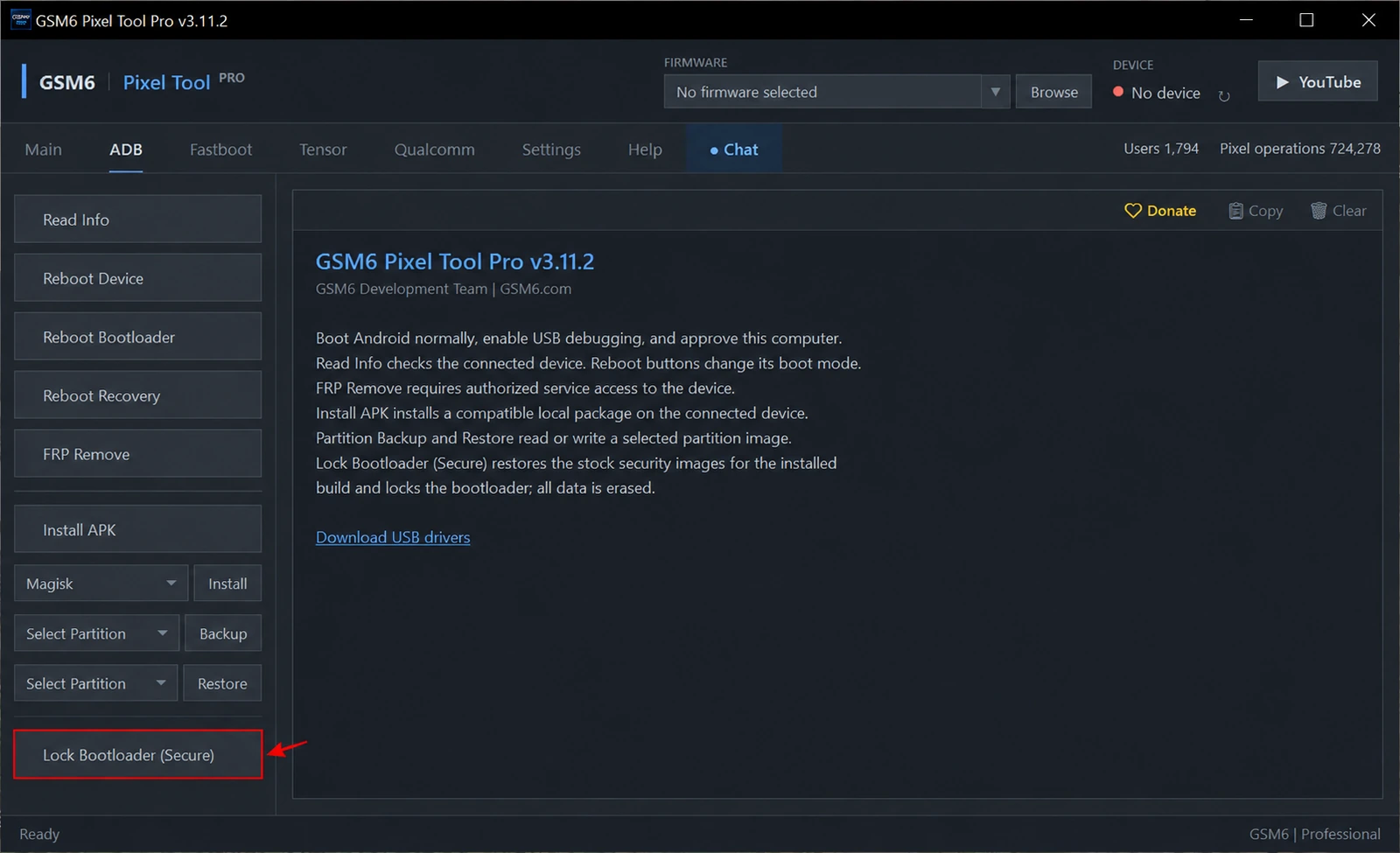
Lock Bootloader (Secure) in the ADB tab prepares an eligible Pixel for relocking without requiring a full firmware flash. It reads the installed device/build details, prepares a matching stock profile and restores the supported stock security images before the locking stage. It is a preparation workflow, rather than simply sending a basic bootloader-lock request.
The target use case is a supported Pixel 7–11 or Fold device whose system remains original. Supported beta builds are included. You start with Android running and an authorized ADB connection instead of selecting a complete firmware installation in flash.android.com.
The condition is essential: if the system partition or other required verified content has been modified, this method can fail and locking may be unsafe. In that situation, use Secure Flash to restore the complete compatible stock firmware before reviewing relock readiness.
Secure Relock versus the ordinary lock button
The ordinary Lock/Relock Bootloader button belongs to the Fastboot workspace. It is appropriate only after a device is already in a compatible state for locking. It does not make a modified system stock merely by requesting a lock.
Secure Lock is located in ADB. GSM6 identifies the installed build and prepares the supported stock security resources before moving into the final device stages. Its purpose is to address a suitable stock-system device without repeating a full firmware installation.
| Option | Purpose | Starting state |
|---|---|---|
| Fastboot Lock/Relock | Request locking on an already prepared device | Verified compatible stock installation |
| ADB Lock Bootloader (Secure) | Prepare an eligible installed build and request locking | Android running; original system required |
| Secure Flash, then relock | Restore complete matching stock firmware first | Modified, uncertain or inconsistent installation |
Android’s Verified Boot documentation explains why the installed verified partitions matter. A lock request alone cannot prove the condition of the system.
Which devices and builds should use it?
Use the current GSM6 Pixel Tool Pro release and allow its live checks to identify the model and complete build. This guide targets the supported Pixel 7, 8, 9, 10 and 11 families and their eligible Fold models.
Beta support means the workflow can prepare eligible matching beta resources. It does not mean a stable profile can be applied to a different beta, or that every modified beta device can be safely relocked.
Do not infer readiness from a working home screen, a removed root-manager app or a completed unroot job. Those observations do not independently establish that all required verified content is original.
Before you select Secure Lock
- Back up all important data. Locking erases the phone.
- Confirm that the original system has not been replaced or modified.
- Record the model, codename, full build number and current bootloader state.
- Use one device, a reliable USB cable and a stable internet connection.
- Install the official Google USB driver and verify both Android and bootloader detection.
- Sign in with active paid Pixel access.
If you cannot establish the stock condition, choose a complete restore rather than using relocking as a test. A phone that boots while unlocked can fail after locking enforces its verification requirements.
How to use Lock Bootloader (Secure)
- Boot Android normally and connect the phone to Windows.
- Enable USB debugging, unlock the screen and authorize the computer.
- Open GSM6 Pixel Tool Pro and use Read Info to confirm the installed profile.
- Select ADB → Lock Bootloader (Secure).
- Read the warning and approve only after completing your backup.
- Let the tool identify and prepare the exact supported stock profile.
- Keep the phone connected while the security-image and verification stages run.
- Follow the on-device locking confirmation when requested.
- Allow the phone to wipe and restart; verify the actual final bootloader state and normal Android boot.
A final command being sent is not the same as confirming a successful first boot. Check the phone before returning it to a customer. Do not disconnect at the confirmation screen or repeat the operation while the device is resetting.
When Secure Lock fails
If matching resources are unavailable, retain the exact build and ask GSM6 Support to check that profile. If the phone cannot enter the requested mode, fix its connection and driver state first.
If modified system content is the problem, the correct fallback is Secure Flash using a complete matching stock package. After the restored system completes its first boot, review the tool’s relock instructions again.
Do not try to make an unsupported state work by selecting another model, ignoring signature errors or repeatedly issuing a lock request. Also consider anti-rollback restrictions when choosing any recovery firmware: “older stock” is not automatically safe.
What this operation does not promise
Relocking is not a network-unlock procedure, a way to bypass an OEM Unlocking restriction, or a guarantee that a banking app will accept the phone. Root, firmware, account status and application policy are separate matters.
For an explanation of the standard path, see the stock-image bootloader relock guide. For rooted maintenance before returning to stock, see partition backup and restore.
Can Secure Relock work without a full firmware flash?
Yes, on an eligible supported build with an original system. It restores the required matching stock security resources before the locking stage.
What if the system partition was modified?
Do not force locking. Restore complete matching stock firmware with Secure Flash, verify a successful boot and then review relocking.
Does Secure Bootloader Lock erase data?
Yes. Back up the phone before accepting the confirmation. Supported beta builds have the same data-loss warning.