Pixel Partition Backup and Restore: Rooted ADB Pull/Push Guide
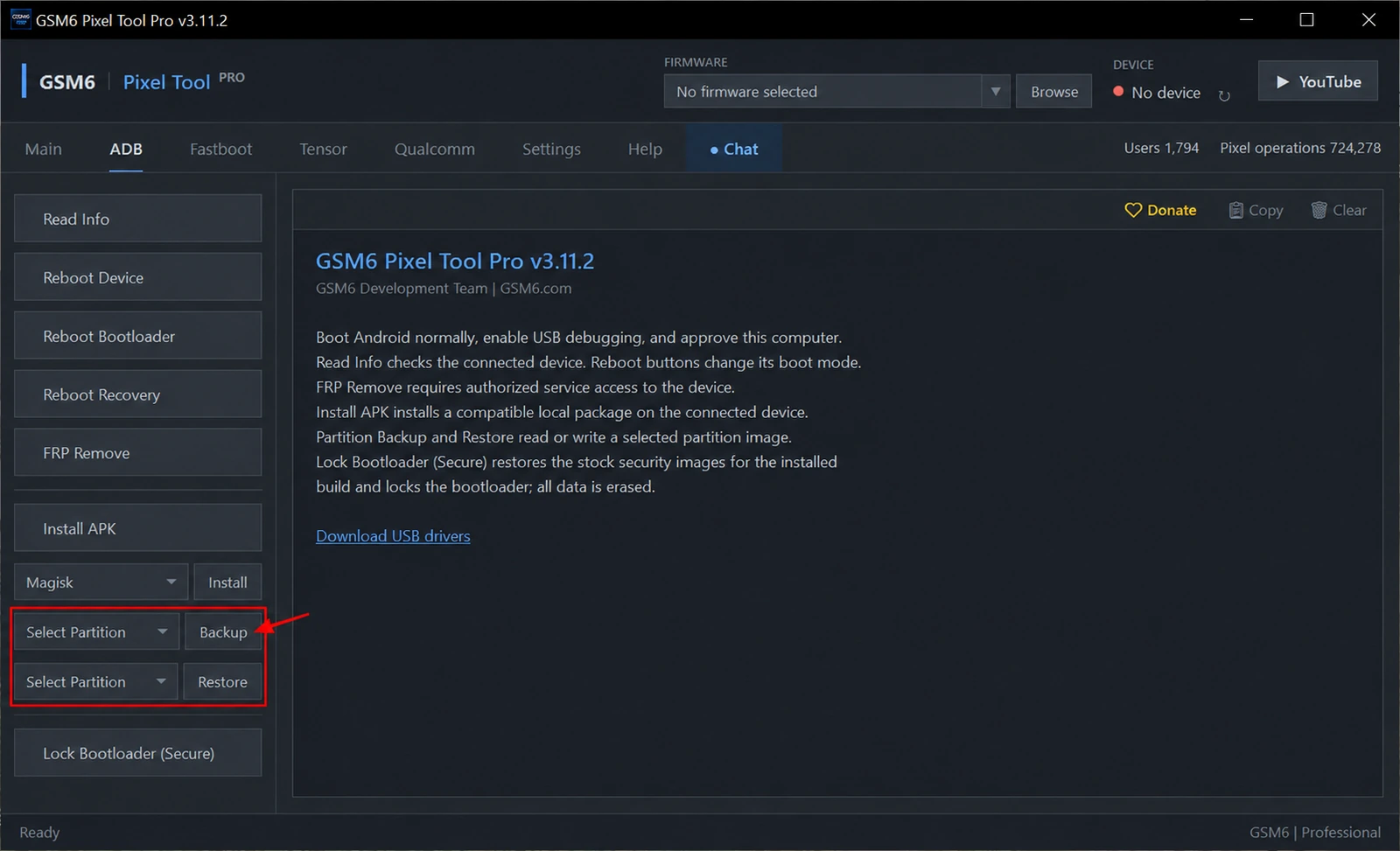
GSM6 Pixel Tool Pro can back up and restore selected Pixel partitions from its ADB tab when a supported root environment is available. Choose a partition and select Backup to read it to a local image. Choose the required partition and select Restore to write a compatible image back.
The controls are in ADB, not Tensor, in the current release. Both are paid operations. The GSM6 Pixel Tool Pro page contains the current download, feature explorer and account information.
This is a partition-image tool for maintenance and repair. It is not the same as copying photos, exporting an application’s data, or making a universal backup that can be restored to any Pixel.
Root is required for both directions
USB debugging and root are separate requirements. An authorized ADB connection lets the computer communicate with Android, but partition access still requires an eligible root environment.
Supported root can be persistent on an unlocked bootloader or temporary on an explicitly supported locked-bootloader build. The root session must still be active when the partition job begins.
For preparation, compare Live Root, Root (Direct) and the Locked BL supported-build guide. If temporary root was lost after a reboot, reconnecting the cable alone will not restore it.
Install the Google USB driver for Windows when the tool cannot see the phone. Driver installation does not grant root.
Partition choices in the current controls
The Backup and Restore dropdowns expose the same names. A listed name is a selectable candidate, not a claim that every connected phone contains that partition.
| Group | Partition names shown in the tool |
|---|---|
| Boot and verification | boot, dtbo, vendor_boot, vbmeta, vbmeta_system, vbmeta_vendor |
| Radio and device configuration | modem, efs, devinfo |
| System and user storage | super, userdata |
| Other platform-specific entries | abl, bl1, bl2, bl31, dpm, gsa, ldfw, pbl, tzsw, xbl, xbl_config |
The tool checks the partitions available on the connected device. Some names differ by platform or use slot suffixes. If the requested partition is absent, stop and use the reported device information; do not rename an unrelated image to force a restore.
Notably, the visible list does not contain a separate init_boot entry in the reviewed controls. Rooting support for init_boot does not automatically mean it appears in this dropdown. Use the actual installed tool’s list as the source of truth.
Prepare a useful backup record
Keep each phone’s images in a separate folder. Record the model, codename, original device identifier privately, complete build, partition name, slot where applicable, date and reason for the backup.
Save a checksum alongside important images if your workshop uses a verification process. A filename such as modem.img says little about where an image came from. A documented original backup is more useful than a folder of images whose devices and builds are unknown.
Large partitions can take substantial time and storage. A raw userdata image is not a promise of readable personal files or a replacement for normal account/application backups. Encryption, consistency and build state can affect what can actually be recovered.
How to back up a partition
- Confirm the device is yours or authorized for service.
- Start the supported root session and keep Android running.
- Open GSM6 Pixel Tool Pro, sign in with paid access and connect one phone.
- Approve USB debugging and verify the model with Read Info.
- In ADB, choose a partition in the Backup control.
- Select Backup, choose the local image destination and wait for the result.
- Confirm the output file exists and retain the operation output with the job record.
A successful transfer confirms the selected read completed. It does not automatically establish that every possible recovery scenario has been tested with that image.
How to restore a partition
Restore is the higher-risk direction because it writes device storage. Confirm the original device, image purpose, partition and firmware compatibility before opening the file.
- Keep an original backup before attempting a write.
- Establish the supported root and authorized ADB connection.
- Choose the exact intended partition in the Restore control.
- Select Restore and choose the compatible image.
- Read the confirmation, keep USB stable and wait for the final result.
- Follow the requested reboot and verify the affected device function afterward.
The tool handles its supported write preparation internally. Users do not need to perform low-level commands from a web guide. Do not interrupt a protected-volume write or treat repeated retries as a repair strategy.
Images that must not be mixed between phones
Do not copy another phone’s identity, security, calibration or radio configuration to your device. Closely related Pixel models can still have different layouts, builds or device-specific content.
An image made before a firmware update is not automatically suitable for restoration afterward. Do not restore a boot, verification or system image merely because the partition name matches. For a broad firmware return-to-stock job, a complete Secure Flash may be the correct workflow instead.
When preparing to relock, restored images alone do not establish a safe locked state. Read Secure Bootloader Relock requirements before proceeding.
Can I back up partitions without root?
Not with these GSM6 ADB partition controls. They require a supported root environment as well as authorized USB debugging.
Can temporary locked-bootloader root be used?
Yes, where the exact device/build and root environment are supported and the session is still active.
Does every Pixel have every partition in the list?
No. The dropdown contains candidates; the tool checks the actual connected device and may reject an absent partition.