Root Pixel Beta Builds with GSM6 Live Root
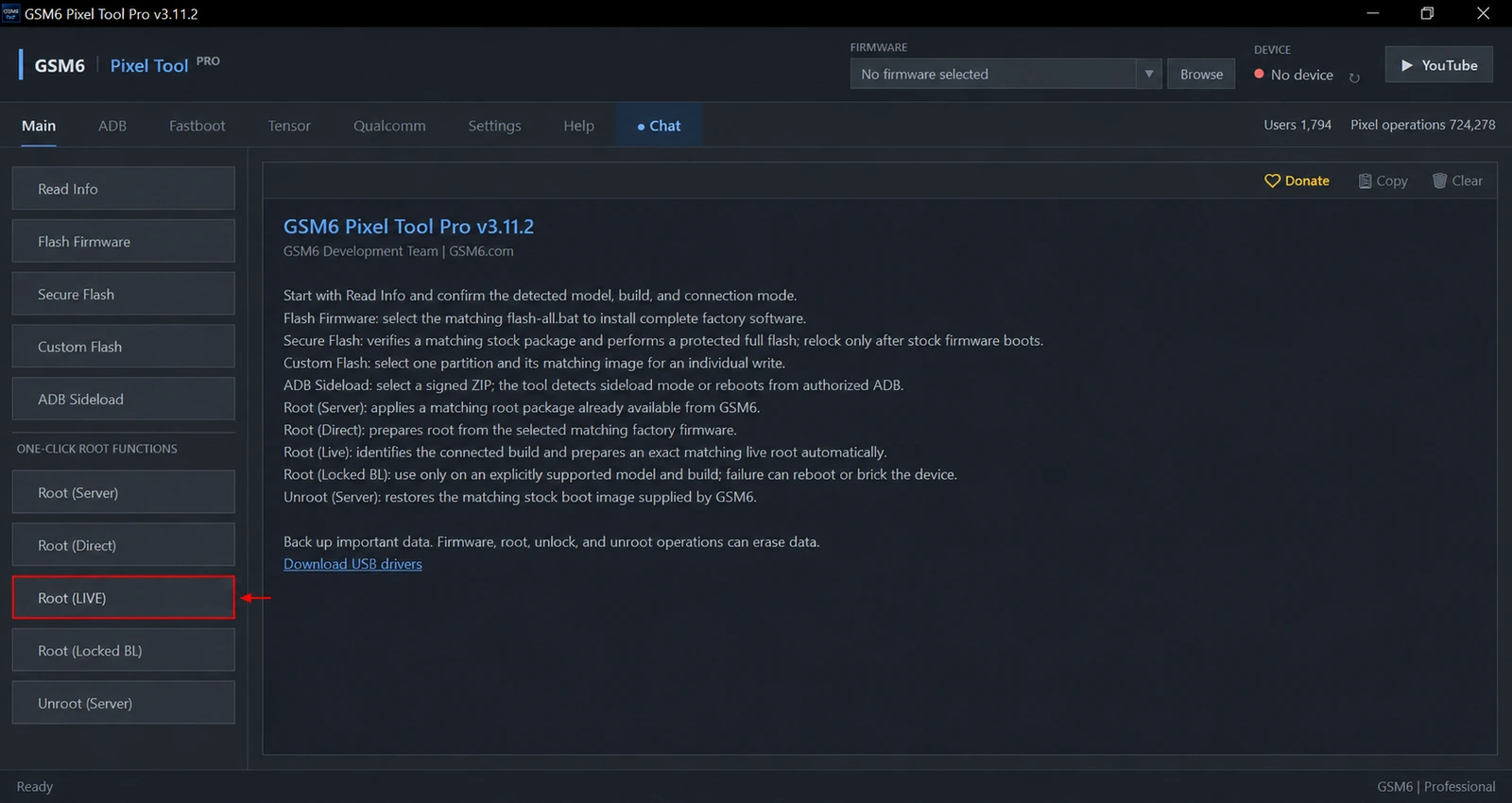
You can use GSM6 Pixel Tool Pro’s Root (LIVE) to root supported Pixel beta builds without manually finding and patching a separate image. The tool reads the phone’s current model and build, prepares a matching root profile through GSM6, and guides the device through the supported stages.
Beta firmware is the main focus of this guide. A beta, preview or QPR build needs its own exact match; a stable image for the same Pixel model is not a safe substitute. This is where the Live Root workflow is useful: the job begins with the actual device, rather than a filename downloaded for a similar phone.
Get the current Windows installer from the GSM6 Pixel Tool Pro page. The broader Live Root guide compares Live, Server, Direct and Locked BL root methods.
Why beta root needs a different check
“My Pixel is supported” and “my installed beta build is supported” are separate statements. A model can receive several beta releases, later maintenance updates and stable versions. Each can report a different build ID.
Before starting, record these details from Read Info:
- The complete model name.
- The device codename.
- The complete installed build number, including suffixes.
- The Android version and current connection mode.
- Whether the bootloader is locked or unlocked.
For example, a screenshot from the same model on an earlier beta does not prove support for your current update. The tool’s exact-build response determines whether to proceed.
What GSM6 automates
The user does not need to select between boot and init_boot, manually patch an image, or prepare a profile for a different beta. Root (LIVE) uses the connected phone’s identity to prepare the supported matching workflow.
This reduces the manual file-selection work that makes beta maintenance awkward. It does not remove device restrictions, eliminate data loss, or guarantee that every future beta will work before matching resources become available.
| Situation | Recommended route |
|---|---|
| Running a supported beta and want automatic matching | Root (LIVE) |
| Already have exact compatible firmware | Root (Direct) |
| Need temporary access while remaining locked | Check the Locked BL exact-build guide |
| Want to return to stock and relock | Review Secure Relock requirements first |
Beta root requirements
Use the latest tool release, an activated GSM6 account, a reliable internet connection and an authorized USB debugging connection. Start with one phone connected and sufficient battery and PC storage.
Windows must recognize the device in every mode used by the job. Follow the Google USB driver guide when Android is visible but the tool cannot detect it, or when detection disappears after a reboot.
Root (LIVE) erases user data. Save local photos, application data, account-recovery information and anything needed after a reset before accepting the prompt. Beta software may also behave differently from a stable release even after a successful root operation.
Do not confuse beta root with permission to unlock a restricted bootloader. Where the workflow needs unlocking, the device must legitimately permit OEM Unlocking.
How to root a supported Pixel beta
- Back up the device and confirm that its current beta build is the one you intend to keep.
- Open GSM6 Pixel Tool Pro, sign in and connect the powered-on phone.
- Unlock the screen and accept the computer’s USB debugging authorization.
- Run Read Info and record the complete model, codename and build.
- In Main, choose Root (LIVE) and review the data-erasure warning.
- Let GSM6 prepare the matching root profile. Follow the phone’s confirmation screens where required.
- Keep the cable connected and wait for the final result, not just a high percentage.
- After Android boots, verify root and test the functions needed for your work.
Do not select a stable build to get past an unsupported-beta response. The safe next step is to retain the output and ask support about that exact profile.
After the next beta or QPR update
Treat the next update as a new job. Record the new complete build ID before reusing any previous root-related file. A successful root on yesterday’s beta does not establish compatibility with today’s build.
Avoid promising customers that a rooted beta will retain the same application compatibility after every update. Root-sensitive apps and device-integrity checks have their own policies, and a beta can introduce unrelated software issues.
For an exact local firmware package, Root (Direct) offers another guided route. It still requires a compatible package for that device and build; it is not a shortcut for using stable resources on beta firmware.
Relocking a beta device
GSM6’s Lock Bootloader (Secure) includes eligible beta-build support. That is a separate operation with separate stock-state requirements. Root success does not prove relock readiness.
If system partitions have been modified, do not force locking. A complete Secure Flash with the correct stock firmware is the recovery route to review before relocking. Both preparation and relocking can erase data.
Troubleshooting beta-build jobs
An unavailable profile usually requires a support check, not repeated attempts. Send the full build ID, codename, tool version and complete output to GSM6 Support. If the device has changed modes, describe the screen it currently shows.
For a missing phone, check drivers, authorization and the cable first. For a rejected unlock, check the legitimate OEM Unlocking state. For a failed boot, stop mixing resources and keep the exact firmware information with the job record.
Can I use stable firmware images to root a beta?
Do not substitute a stable image for a different beta build. Use the exact detected beta profile or compatible firmware for that same build.
Does Live Root require manual image patching?
No. The supported Live Root preparation is automated after device identification and confirmation.
Does beta-build support guarantee every future beta?
No. The connected device, exact build and available matching resources must still pass the live check.