Stop Saving Google Voice and Audio Activity in Your Account
Google services on Android devices and smart displays provide hands-free assistance, dictation, and voice search. Google states that the optional Include voice and audio activity setting is off unless you choose to enable it. When enabled, it can save recordings from supported voice interactions with Web & App Activity.
Turning it off stops future Assistant audio recordings from being saved to your Google Account through that setting. It does not disable the microphone, stop voice processing needed to answer a request, turn off wake-word features, delete existing recordings, or control audio stored by every other Google service. See Google’s voice and audio activity documentation.
How Google audio logging works
When the optional setting is enabled, supported interactions can be saved with Web & App Activity. Google’s documentation does not say that every Maps voice search or every third-party dictation recording is governed by this one control.
| Audio tracking dimension | Setting enabled | Setting paused (disabled) |
|---|---|---|
| Account audio retention | Supported recordings can be saved with Web & App Activity | Future Assistant recordings are not saved through this setting |
| Real-time processing | Google still processes spoken requests | Google still processes spoken requests |
| Wake-word listening | On-device chip monitors for “Hey Google” | On-device chip continues local wake-word monitoring |
| Other audio locations | Other services and on-device features have separate controls | Other services and on-device features remain separate |
Disabling audio retention does not delete past recordings that Google has already logged; legacy recordings require manual deletion or an automated purge policy.
5-step procedure to disable Google voice tracking on Android
Follow these steps directly within your Android smartphone settings to stop Google from storing future voice and audio activity.
1. Open Google Account settings
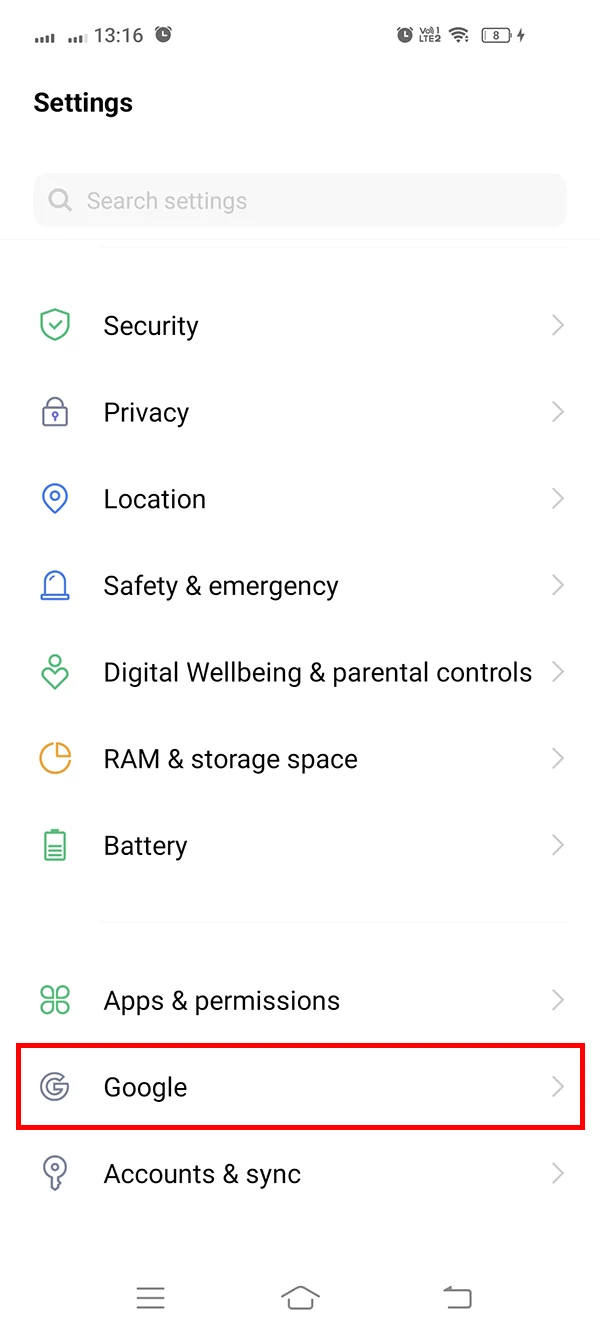
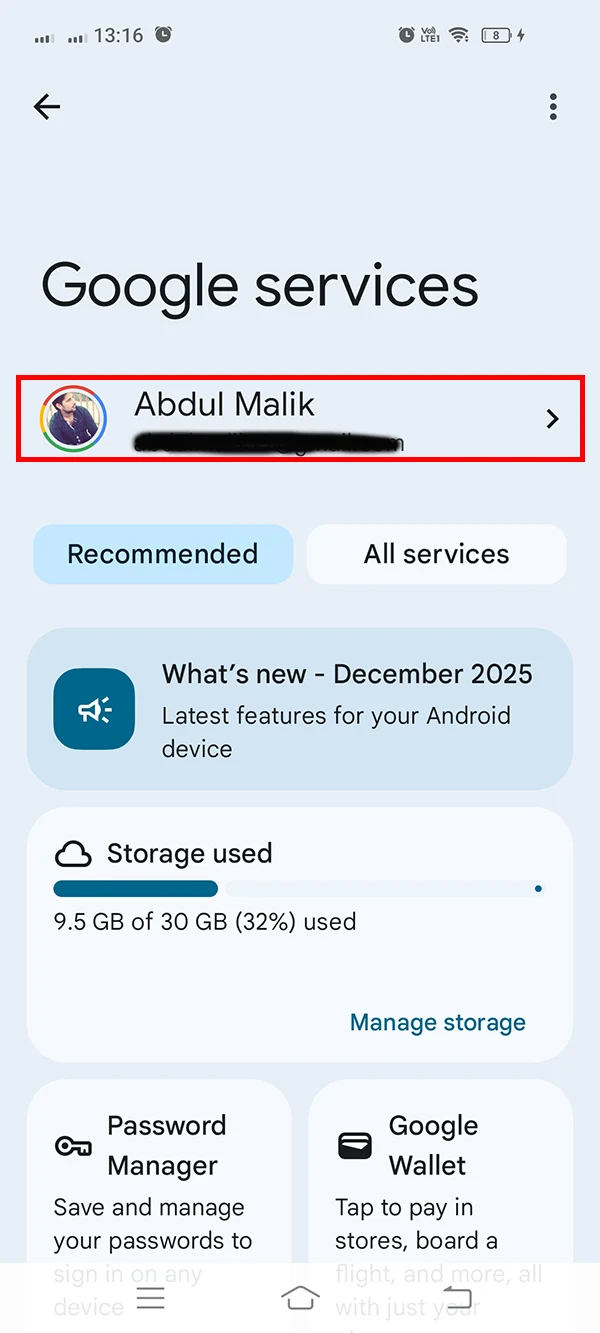
Open the Settings app on your Android device. Scroll down and tap Google to open system-level account services, then tap Manage your Google Account.
2. Navigate to Data and privacy
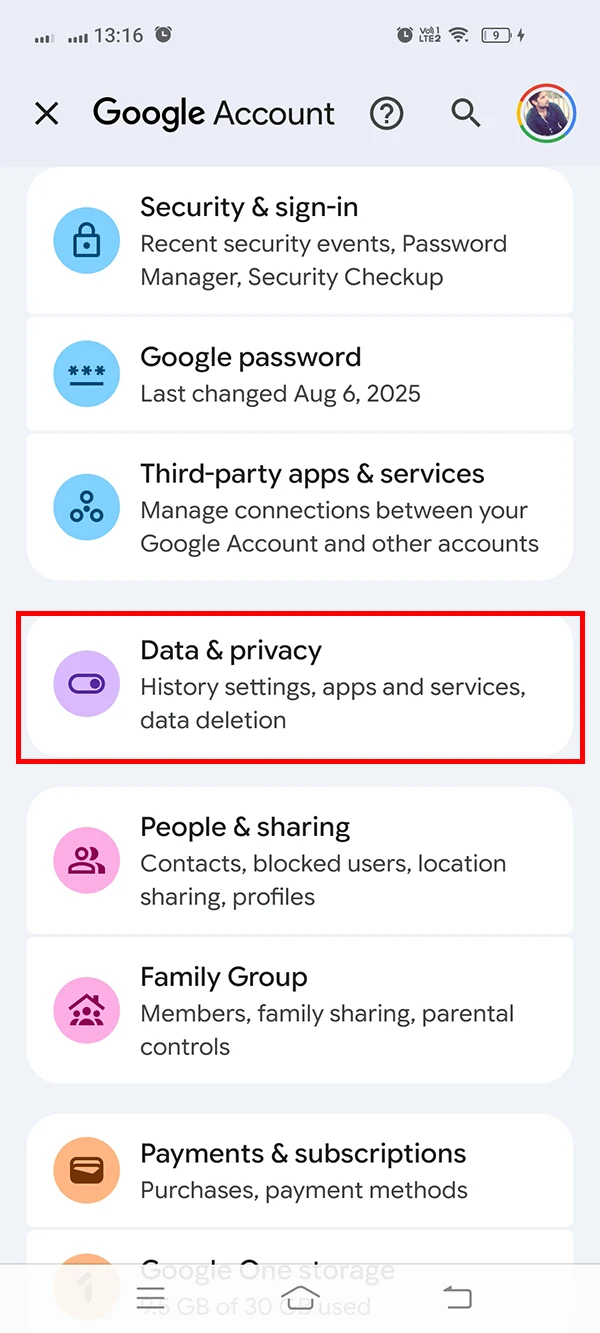
From the top navigation ribbon, select the Data & privacy tab to access account activity controls and personalization toggles.
3. Access Web and App Activity
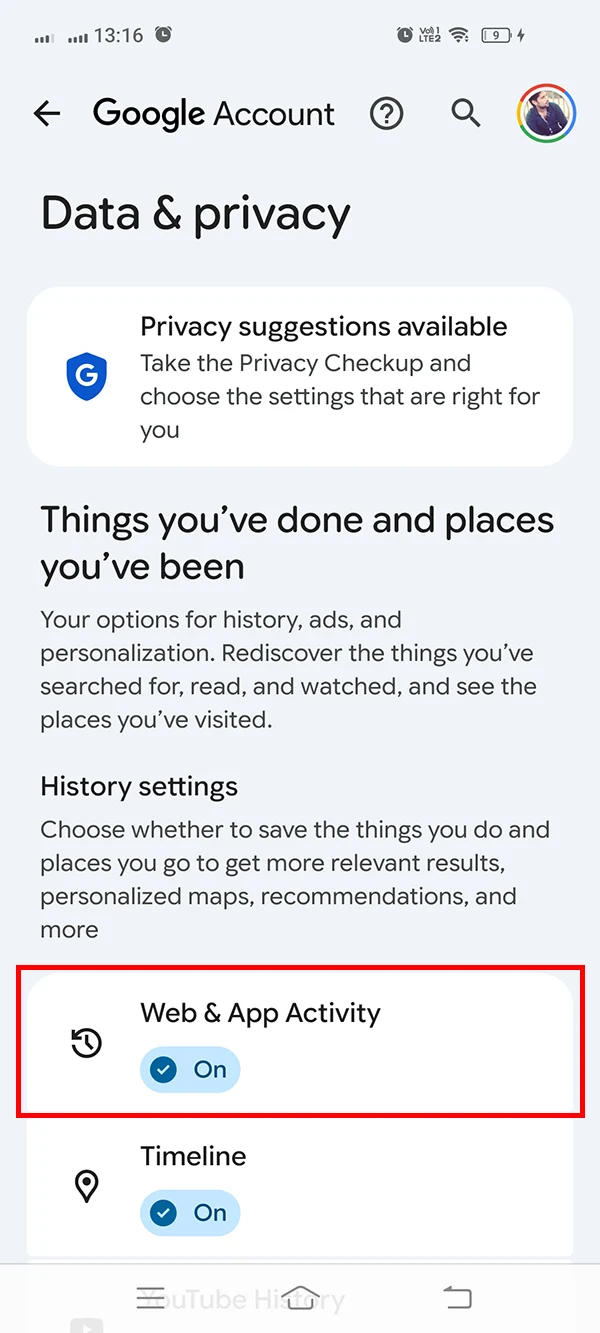
Scroll to the History settings section and tap Web & App Activity.
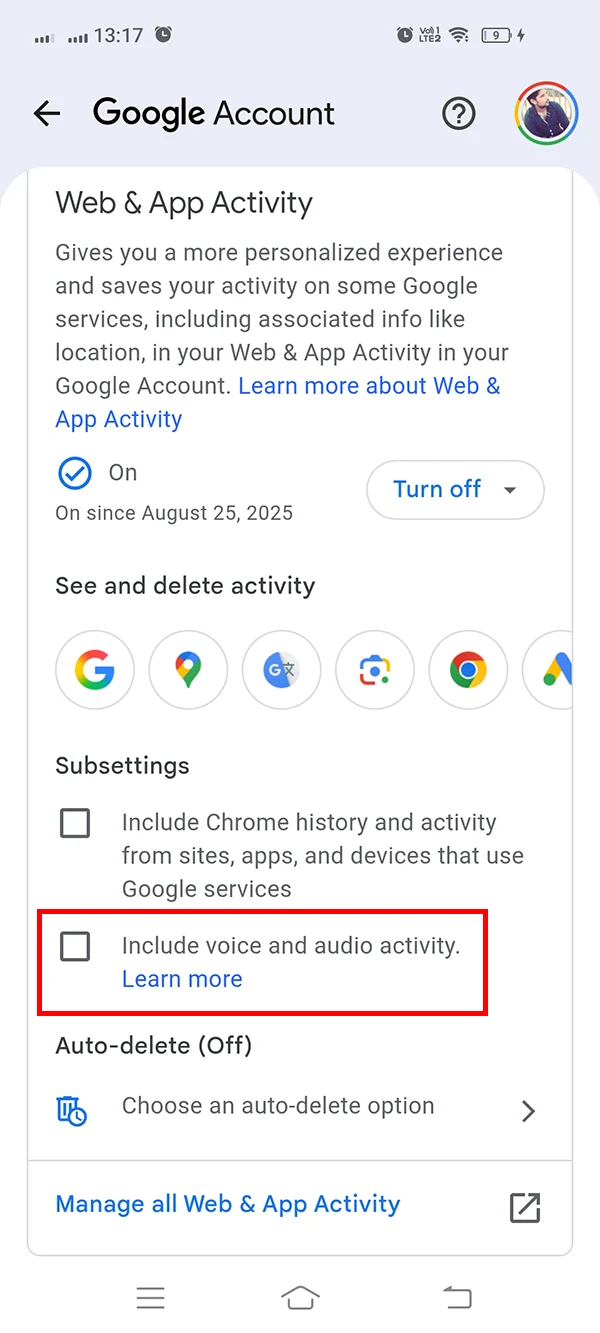
4. Uncheck voice and audio activity
Under the subsettings section, locate the checkbox labeled Include voice and audio activity and tap it to deselect the feature.
5. Confirm pause and delete recordings
A dialog prompt will summarize what happens when audio recording is paused. Tap Stop saving or Pause at the bottom of the prompt to confirm your selection.
Once disabled, Google says future Assistant audio recordings are no longer saved to your account through Web & App Activity. Previously saved recordings remain until you delete them.
Alternative method: Managing voice tracking via web browser
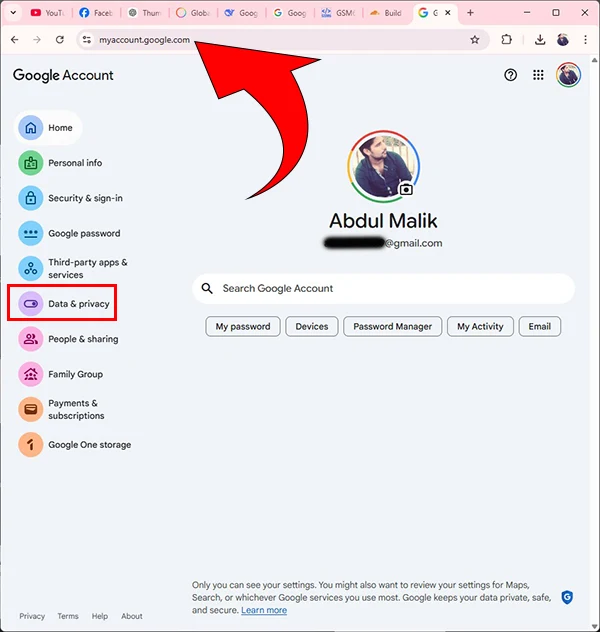
If you prefer configuring your account from a desktop computer or mobile browser, you can modify the same setting through the centralized Google Account portal.
- Navigate to Google Account Activity Controls in any web browser and log in.
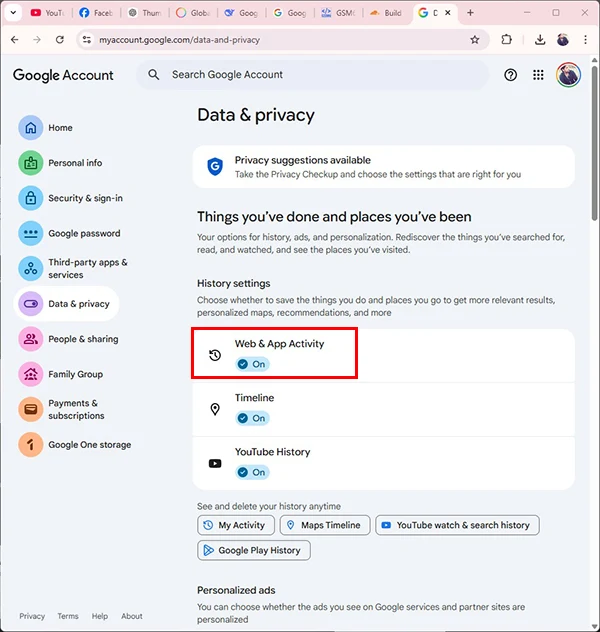
- Select Data & privacy from the navigation sidebar.
- Under History settings, click Web & App Activity.
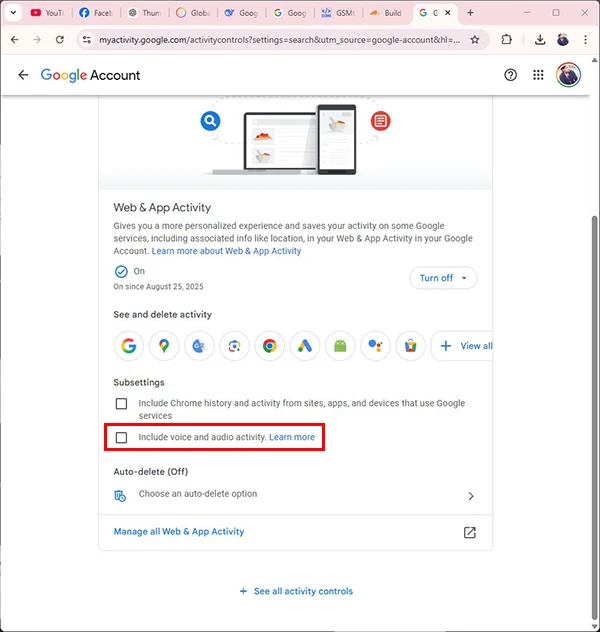
- In the subsettings list, uncheck Include voice and audio activity.
- Click Pause in the confirmation modal.
Purging existing voice recordings from your Google account
Pausing future voice tracking does not erase historical recordings. To purge stored audio history:
Manual deletion of past recordings
- In the Web & App Activity screen, scroll down and tap Manage all Web & App Activity.
- Tap the Delete button situated above your timeline.
- Choose All time from the menu options to delete accumulated interaction logs, or select Custom range for specific dates.
- Confirm deletion when prompted.
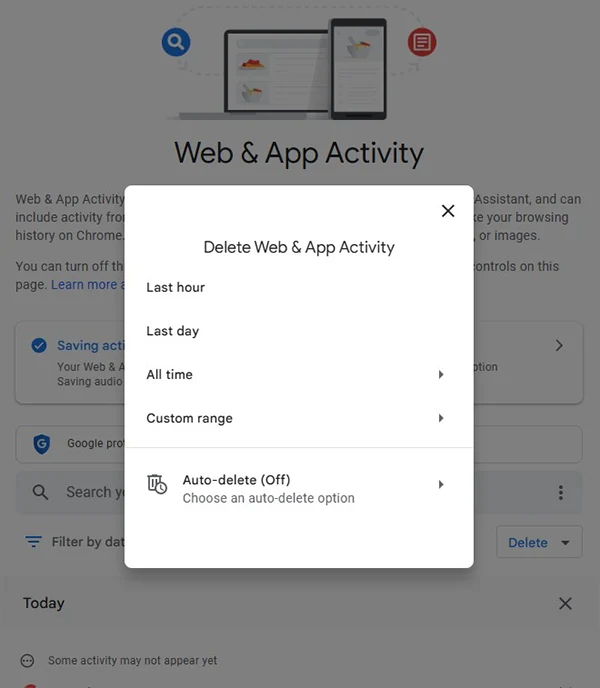
Setting an automated retention policy
Rather than executing manual purges periodically, configure Google to auto-delete your data:
- Under Web & App Activity, tap Auto-delete.
- Select an automated retention threshold (3 months, 18 months, or 36 months).
- Tap Next and confirm the schedule.
Audio logging vs. on-device wake-word detection
A common point of confusion is the difference between Google account audio logging and hardware microphone monitoring:
- Voice Activity Setting: Controls the optional saving of supported voice/audio recordings with Web & App Activity.
- Microphone Hardware Permissions: Governs whether individual apps (including Google and Google Play Services) have access to the physical microphone sensor.
- Wake Word Detection (“Hey Google”): Is a separate activation setting. Google notes that false activations can occur and that some devices can include audio from shortly before activation when account audio saving is enabled.
To completely prevent the microphone from actively scanning for wake words:
- Open the Google app on your Android device.
- Tap your profile icon in the upper-right corner and select Settings.
- Tap Google Assistant → Hey Google & Voice Match.
- Toggle Hey Google off.
Technical privacy summary and references
This control has a precise scope: optional Google Account storage of supported voice/audio activity. Review microphone permissions, Assistant activation, Voice Match, and service-specific audio controls separately. For related documentation, refer to: