Google Pixel Technicians Toolkit v2.0.0 Historical Release
Google Pixel Technicians Toolkit v2.0.0 is preserved as the initial public release of the desktop utility. It has been superseded by later GSM6 tooling and must not inherit later device, firmware, or repair capabilities.
Toolkit v2.0.0 provides workshop technicians and advanced users with a streamlined graphical control console to automate devinfo partition restoration, manage bootloader lock states, and resolve dual-slot (A/B) bootloop failures.
Technical Overview and Core Architecture
Modern Google Pixel handsets utilize Google Tensor silicon paired with Samsung Shannon baseband modems and dual A/B seamless partition tables. Managing these components requires coordinated Fastboot operations.
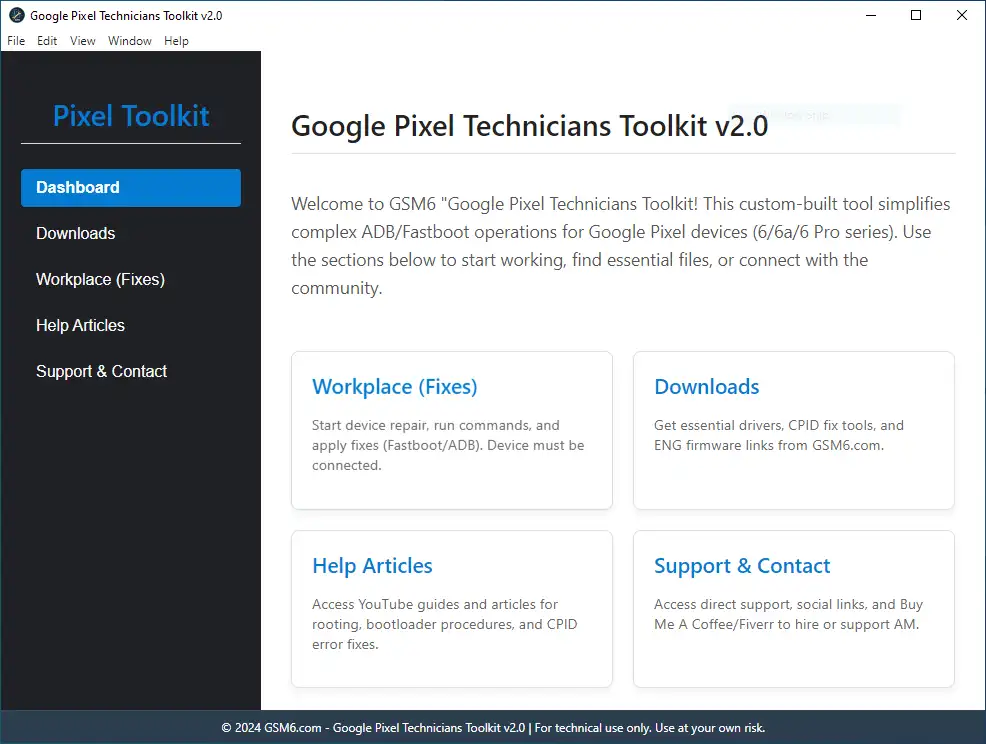
Core Functional Capabilities
| Feature Module | Technical Focus | Supported Hardware |
|---|---|---|
| IMEI 0 & CPID Fix | Reconstructs wiped devinfo partition blocks | Pixel 6, Pixel 6a, Pixel 6 Pro |
| A/B Slot Recovery | Switches active boot partition to recover soft-bricked updates | Pixel 6, 7, and 8 Series |
| Bootloader Control | Executes factory lock and unlock sequences safely | Pixel 6, 7, and 8 Series |
| Direct ADB/Fastboot | Sends bundled commands; the device response still requires review | Models explicitly listed by this release |
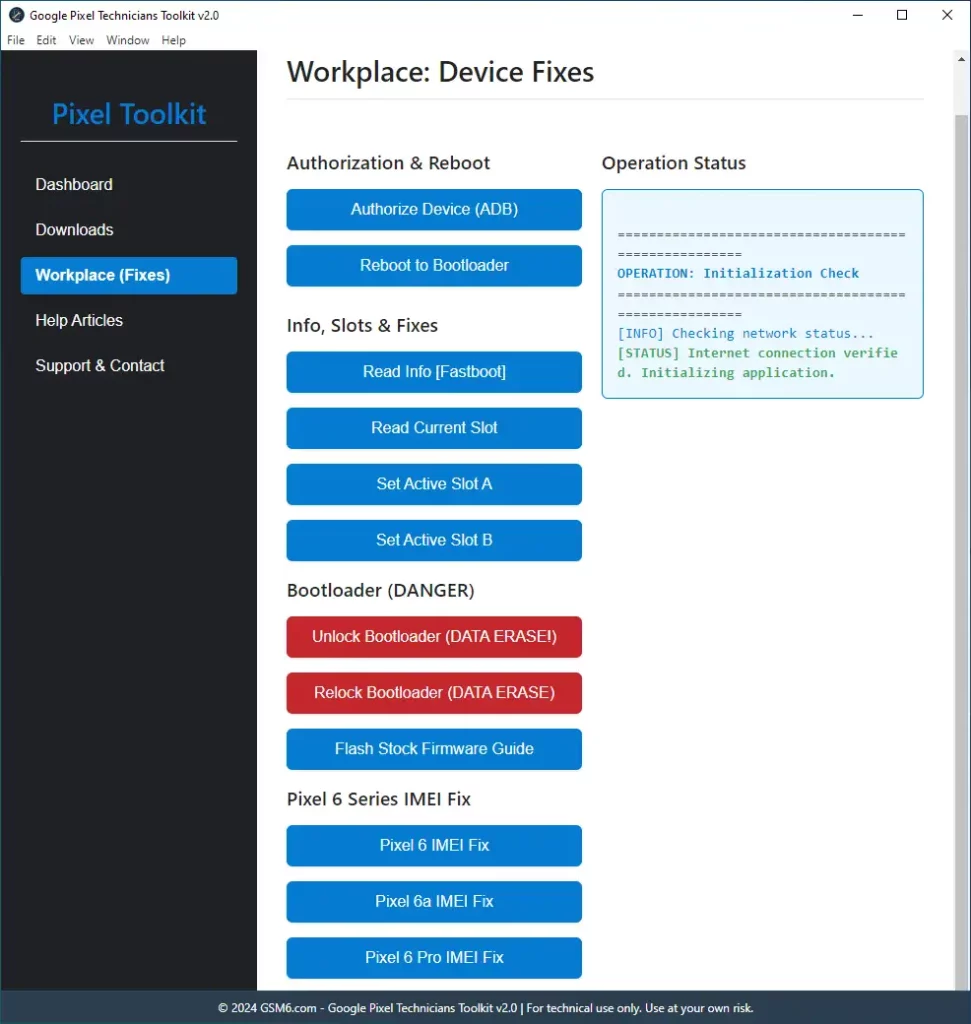
Important Advisory: Bootloader unlocking initiates an automated cryptographic factory wipe of all internal user storage. IMEI restoration functions must only be used to re-flash the original manufacturer-assigned IMEI belonging to the physical device. Altering device identifiers to bypass blacklists or disguise stolen property is strictly prohibited.
For broader cross-model Tensor diagnostics, review our Google Pixel IMEI repair guide.
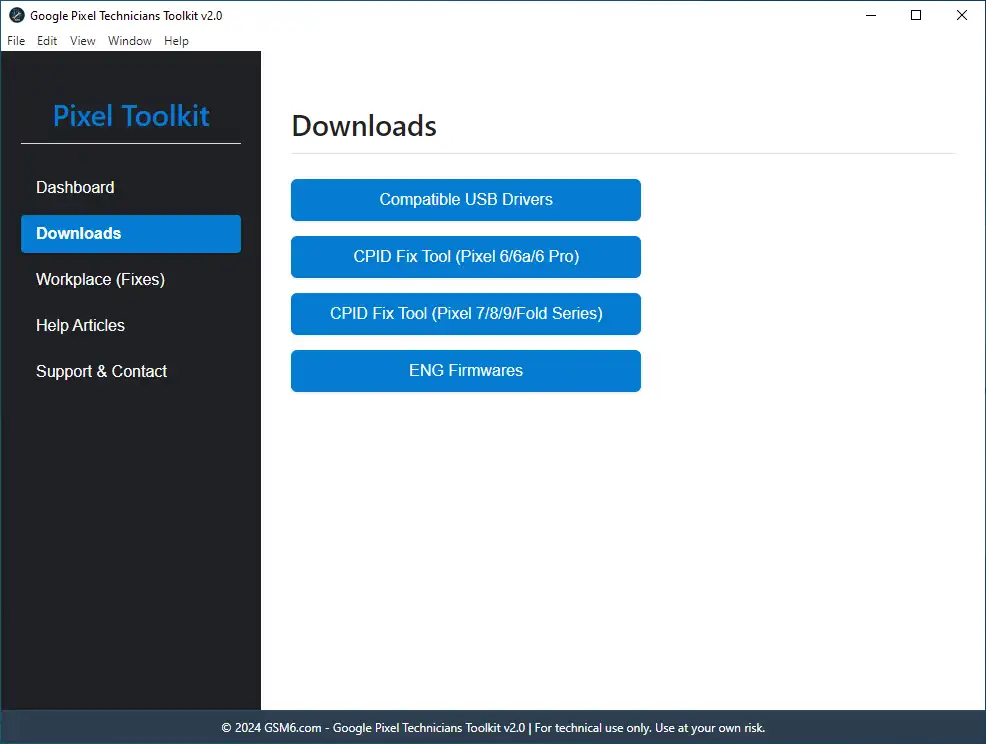
Download: Google Pixel Technicians Toolkit v2.0.0
Choose between the standalone portable zip archive (recommended for technician USB drives) or the full Windows installer.
Release Specifications
| Specification | Details |
|---|---|
| Software Name | Google Pixel Technicians Toolkit |
| Release Version | v2.0.0 (historical first release) |
| Operating System | Windows 7, 8, 10, 11 (32-bit & 64-bit) |
| Package Size | ~150 MB |
| License | Free Technician Utility |
| Archive Password | gsm6.com |
| Package verification | Earlier hash labels were removed because the recorded values were only 40 hexadecimal characters and therefore were not SHA-256 evidence |
Package Downloads
- Portable Archive (No Setup Required): Download Portable ZIP (MEGA)
- Windows Installer Edition: Download Installer EXE (MEGA)
- Next-Generation Edition: Check our advanced multi-device suite, GSM6 Pixel Tool Pro.
Community Verification and Reviews
External listings can help identify a release but do not authenticate the MEGA files or prove a repair result. Preserve the Softpedia listing and XDA discussion as historical references, then verify the downloaded file independently.
Companion Drivers
Ensure your computer has the necessary USB and fastboot drivers configured:
- Install the Samsung and Android USB Drivers or Google USB Driver.
- If you need command-line platform binaries, review our Android Platform Tools guide.
Step-by-Step Operating Guide
1. Configure Android USB Drivers and Developer Options
Establish reliable communication between the smartphone and host PC.
- Install the Google USB Driver on your Windows workstation.
- On the Pixel, navigate to Settings > About phone and tap Build number 7 times.
- In Settings > System > Developer options, enable both USB debugging and OEM unlocking.
2. Download and Launch Toolkit v2.0.0
Extract the package files locally.
- Download the portable zip or installer package using password
gsm6.com. - Extract the archive into a dedicated directory.
- Right-click the toolkit executable and select Run as administrator.
3. Connect Pixel Device in Fastboot or ADB Mode
Establish device synchronization with the software.
- Connect the Pixel to your computer using a quality USB Type-C data cable.
- Grant the RSA debugging prompt on the phone screen by selecting Always allow from this computer.
- Verify that the toolkit displays the connected device and serial number on the home dashboard.
4. Select Repair Mode (IMEI 0, Bootloader, or Slot A/B)
Choose the operation matching your diagnostic requirement.
- IMEI 0 workflow (Pixel 6 Series): Use only on an explicitly supported build and only to restore the identifier assigned to that physical device. Preserve the original fault, partitions, tool log, and recovery path.
- Fix Active Slot (A/B Bootloop): If the phone fails to complete booting after an update, click Switch Active Slot to toggle between slot
_aand slot_b. - Bootloader Management: Use the lock and unlock triggers to adjust bootloader security states as needed.
5. Finalize Operations and Verify Device Integrity
Complete the procedure and confirm normal system operation.
- Allow the software to complete all partition writes over Fastboot without interrupting cable connection.
- Reboot the handset into Android.
- Open the phone dialer and enter
*#06#to verify that the valid hardware identity is displayed. - Record the installed build, factory identifier, baseband, SIM registration, calls, data, Wi-Fi/Bluetooth identity, reboots, and any update behavior. A tool success banner is not proof of persistent calibration repair.
Video Demonstration
Watch the complete IMEI 0 fix procedure performed on a Google Pixel 6 running Android 16:
Diagnostic and Troubleshooting Notes
- Device Stalls in Fastboot: If the toolkit does not register the device in Fastboot mode, verify that the Google Bootloader Interface driver is correctly installed in Device Manager.
- Relocking Error “Invalid Android Images”: Fastboot blocks bootloader relocking if custom or unverified partitions remain flashed. Flash official stock factory firmware before attempting to relock.
- IMEI Fix Model Scope: The automated IMEI 0 partition injector in v2.0.0 is calibrated specifically for Tensor G1 (Pixel 6 series). For Pixel 7 or 8 models, use manual Shannon partition flashing or our newer diagnostic tools.