Google Pixel IMEI/CPID Repair Tool: Support and Evidence Limits
When Google Pixel smartphones encounter deep system crashes, partial OTA installations, or firmware mismatches, the cellular subsystem can drop into an unprovisioned state. This condition displays as an Unknown Baseband, complete loss of network signal, or an IMEI 000000000000000 readout in the dialer. On Google Tensor hardware spanning the Pixel 6, 7, 8, 9, and Fold generations, the modem configuration and hardware identity files reside inside the devinfo partition alongside carrier policy calibration tokens (CPID).
The Google Pixel IMEI Repair Suite advertises an automated Windows interface for identity-partition and modem work. GSM6 has not retained an exact device/build test matrix proving those operations or outcomes across Pixel 6, 7, 8, 9, and Fold generations.
Technical Overview and Requirements
Modem repair on Google Tensor devices operates through Fastboot and low-level diagnostic bridges rather than legacy Qualcomm emergency download (EDL) modes.
| Requirement | Details | Importance |
|---|---|---|
| Supported Devices | Pixel 6, 7, 8, 9 series and Pixel Fold | Mandatory |
| Bootloader State | Unlocked (OEM unlocking active) | Mandatory |
| Workstation OS | Windows 10 or 11 (64-bit recommended) | Mandatory |
| Python Runtime | Python 3.8+ installed with “Add Python to PATH” enabled | Essential |
| USB Drivers | Google USB Driver properly configured | Essential |
| Connection Cable | Direct USB Type-C data transfer cable | Critical |
| Hardware Identity | Original 15-digit IMEI located on SIM tray or retail box | Mandatory |
Critical Legal Notice: Mobile equipment identifiers are protected under international telecommunications law. This utility is intended strictly for repairing corrupted identity partitions on legitimately owned hardware using the device’s original manufacturer-assigned IMEI. Using this software to disguise stolen equipment or evade carrier blacklists is illegal.
For device-specific instructions focused on Tensor G1, consult our Pixel 6 series IMEI repair guide.
Tool Interface and Diagnostic Capabilities
The interface exposes devinfo and modem-related operations. Similar marketing names do not establish that different Tensor generations share the same writable partitions or repair method.
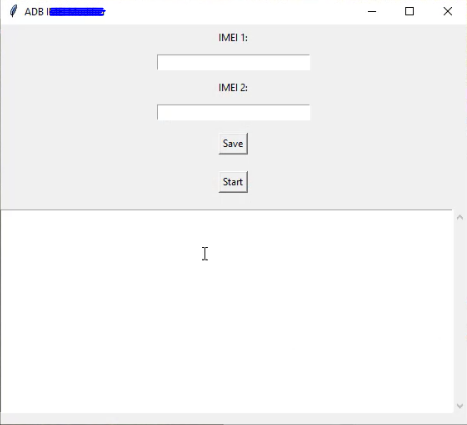
Supported Device Generations
- Google Pixel 9 Family: Pixel 9, Pixel 9 Pro, Pixel 9 Pro XL, Pixel 9 Pro Fold (Tensor G4)
- Google Pixel 8 Family: Pixel 8, Pixel 8 Pro, Pixel 8a (Tensor G3)
- Google Pixel 7 Family: Pixel 7, Pixel 7 Pro, Pixel 7a (Tensor G2)
- Google Pixel 6 Family: Pixel 6, Pixel 6 Pro, Pixel 6a (Tensor G1)
- Foldable: Google Pixel Fold (1st Gen)
Download: Google Pixel IMEI Repair Tool
The linked MEGA archive is a third-party distribution. Verify the publisher, hash, exact tool release, and supported build before proceeding; the download link itself is not provenance evidence.
Utility Specifications
| Specification | Details |
|---|---|
| Tool Name | Google Pixel IMEI Repair Tool |
| Version | 2025.1.0 |
| Platform | Windows 7, 8, 10, 11 (32-bit & 64-bit) |
| File Size | 100 MB |
| License | Free Utility |
| Password | gsm6.com |
| Dependencies | Python 3.x, ADB & Fastboot Platform Tools |
- Repair Suite Download: Download Google Pixel IMEI Repair Tool (MEGA)
- Archive Password:
gsm6.com
Companion Drivers and Utilities
Ensure your computer has the necessary USB and fastboot drivers configured:
- Install the Samsung and Android USB Drivers or Google USB Driver.
- Verify platform command binaries with our Android Platform Tools setup guide.
Step-by-Step Restoration Procedure
1. Enable Developer Options and USB Debugging
Allow the host PC to communicate with low-level Android interfaces.
- Open Settings > About phone on your Pixel.
- Tap Build number seven consecutive times until developer mode activates.
- Open Settings > System > Developer options.
- Enable the toggles for OEM unlocking and USB debugging.
2. Download and Extract the Pixel Repair Suite
Set up the workspace environment on your Windows computer.
- Download the tool archive from the link above.
- Extract the archive contents using WinRAR or 7-Zip with the password
gsm6.com. - If Python is not already installed on your PC, download Python 3 from python.org and ensure you check “Add Python.exe to PATH” during installation.
3. Connect Pixel and Establish Fastboot Bridge
Attach the smartphone to your PC and verify detection.
- Connect your Pixel using a certified USB Type-C cable.
- When the phone prompts with Allow USB debugging?, select Always allow and tap Allow.
- Open a command terminal and execute:
adb reboot bootloader - If your bootloader is locked, execute
fastboot flashing unlockand confirm the prompt on the device screen (note that this triggers a complete factory wipe).
4. Select Repair Mode and Execute Devinfo Patch
Generate and write the corrected partition data.
- Right-click the tool executable and select Run as administrator.
- Confirm that the tool recognizes your connected device and hardware model.
- Select the required operation:
- Repair IMEI: Enter the original 15-digit IMEI printed on the physical SIM tray.
- CPID Patch: Rebuilds carrier policy tokens to resolve regional SIM rejection.
- Click Start / Repair and allow the application to compile the updated
devinfo.imgand write it over Fastboot. Do not disconnect the cable during flashing.
5. Reboot and Validate Modem Registration
Finalize the flashing process and test cellular connectivity.
- Execute the reboot command:
fastboot reboot - Wait for Android to initialize completely.
- Open the phone dialer and enter:
*#06# - Confirm that the dialog displays your original 15-digit IMEI instead of zeros or blank fields.
- Insert an active SIM card to confirm network registration, LTE/5G data connection, and voice calls.
Video Demonstrations
Complete IMEI & CPID Repair Walkthrough
Watch the complete diagnostic and flashing sequence:
Python Dependency Fix Guide
If the application displays errors regarding missing Python binaries or script compilation halts:
Troubleshooting Common Errors
- Python Not Found / Failed to modify devinfo: The application uses background Python scripts to unpack and rebuild partition binaries. Ensure Python is installed with system PATH environment variables enabled.
- Fastboot Device Not Detected: Open Device Manager on Windows. If “Android” appears with a yellow exclamation triangle, right-click and update driver manually pointing to the Google USB Driver directory.
- No Service after an IMEI appears: A displayed identifier does not diagnose radio registration. Check baseband state, SIM/carrier provisioning, blacklist status, hardware, and logs before any write operation; do not assume a CPID option is the correct fix.