OnePlus flash files download for MSM Download Tool Android 9,10,11
When a Qualcomm Snapdragon-powered OnePlus device encounters a catastrophic software failure—resulting in a hard brick where the screen remains blank, Fastboot is inaccessible, and recovery mode cannot be triggered—the factory-level MSM Download Tool is the definitive recovery solution. Unlike high-level flashing utilities that require an active Android bootloader, the MSM Download Tool communicates directly with Qualcomm’s Primary Boot Loader (PBL) in Emergency Download (EDL) Mode.
This guide indexes community-hosted recovery packages for older OnePlus releases and explains their use. The repository and archives were not authenticated as official OnePlus releases during this audit; verify the exact model, region, package hash, and MSM tool pairing before use.
The Role of Android 9, 10, and 11 in Baseband and Diagnostic Servicing
While newer releases of OxygenOS and ColorOS (Android 12 and above) introduce updated user interfaces, they also enforce strict security policies that restrict low-level access to the Qualcomm diagnostic (DIAG) port.
On Qualcomm Snapdragon platforms, the modem configuration, radio calibration values, and unique IMEI credentials reside in the device’s Non-Volatile (NV) items within the EFS partition. If an interrupted flash or corrupt partition table causes an “IMEI Null” or “Baseband Unknown” error:
- Android 9 through 11: Diagnostic COM endpoints can be enumerated directly via engineering keycodes or ADB directives without requiring authenticated server credentials, allowing tools like QPST/QFIL to restore backed-up QCN calibration archives.
- Android 12 and Newer: Diagnostic access can be restricted by Android security policy, OEM authorization, and build-specific changes. Samsung Knox terminology does not apply to OnePlus devices.
An exact-model MSM recovery package can rewrite major firmware partitions in EDL mode. Package layouts and authorization requirements vary, and a shared Android major version does not establish compatibility.
Community-Indexed OnePlus Unbrick Packages by Model
The MSM Download Tool packages bundle the signed factory .ops firmware archive along with the platform flashing binary. Select the archive corresponding to your specific OnePlus hardware generation and regional variant:
| OnePlus Phone Model | Official Unbrick Repository Link |
|---|---|
| OnePlus 2 | OnePlus 2 MSM Tool |
| OnePlus 3 | OnePlus 3 MSM Tool |
| OnePlus 3T | OnePlus 3T MSM Tool |
| OnePlus 5 | OnePlus 5 MSM Tool |
| OnePlus 5T | OnePlus 5T MSM Tool |
| OnePlus 6 | OnePlus 6 MSM Tool |
| OnePlus 6T | OnePlus 6T MSM Tool |
| OnePlus 7 | OnePlus 7 MSM Tool |
| OnePlus 7T | OnePlus 7T MSM Tool |
| OnePlus 7T Pro | OnePlus 7T Pro MSM Tool |
| OnePlus 7 Pro | OnePlus 7 Pro MSM Tool |
| OnePlus 8 | OnePlus 8 MSM Tool |
| OnePlus 8T | OnePlus 8T MSM Tool |
| OnePlus 8 Pro | OnePlus 8 Pro MSM Tool |
| OnePlus 9 | OnePlus 9 MSM Tool |
| OnePlus 9R | OnePlus 9R MSM Tool |
| OnePlus 9 Pro | OnePlus 9 Pro MSM Tool |
| OnePlus Nord | OnePlus Nord MSM Tool |
| OnePlus Nord CE | OnePlus Nord CE MSM Tool |
| OnePlus Nord N10 5G | OnePlus Nord N10 5G MSM Tool |
| OnePlus Nord N100 | OnePlus Nord N100 MSM Tool |
| OnePlus Nord N200 | OnePlus Nord N200 MSM Tool |
Note: For carrier-locked North American models (such as T-Mobile variants), download the dedicated carrier package to prevent board verification rejections.
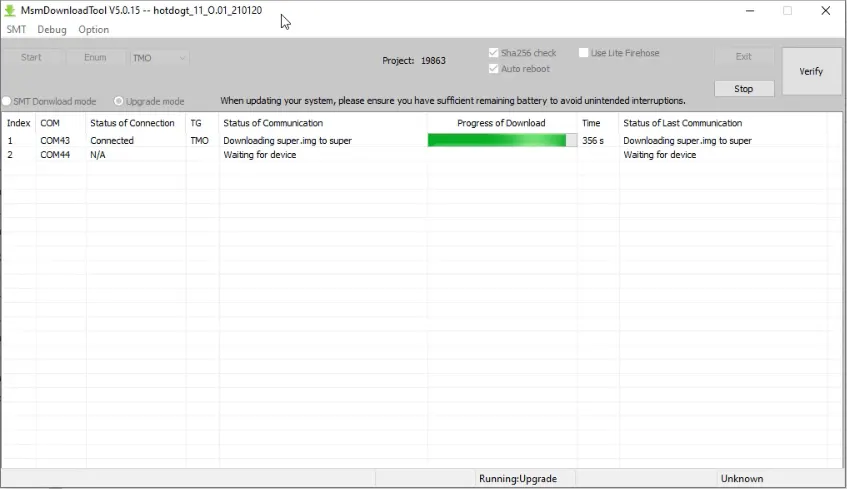
OnePlus MSM Download Tool user interface showing connected COM port.
Prerequisites and Setup Requirements
- Windows PC: A machine running Windows 7, 10, or 11 with administrative rights.
- Qualcomm Drivers: Ensure official Qualcomm HS-USB QDLoader 9008 drivers are installed. For comprehensive setup instructions, visit our Qualcomm USB Drivers Guide.
- Direct USB Port: Avoid front-panel USB ports, unpowered hubs, or adapters; plug the phone directly into a rear USB 2.0 or 3.0 port on the computer.
Step-by-Step Procedure to Unbrick via MSM Download Tool
Follow these five stages to establish EDL communication and reflash stock OxygenOS partitions.
1. Download Model-Specific MSM Download Tool Package
- Locate your model in the download matrix above.
- Download and extract the ZIP archive to a short directory path (such as
C:\OnePlus_MSM). - Verify that the folder contains
MsmDownloadTool V4.0.exe(or equivalent version) and the matching.opscontainer file.
2. Install Qualcomm QDLoader 9008 USB Drivers
- Install the 32-bit or 64-bit Qualcomm QDLoader driver package corresponding to your Windows architecture.
- Restart your computer if prompted to finalize kernel driver registration.
3. Connect OnePlus in Qualcomm EDL Emergency Mode
- Disconnect the device from your computer and power it off completely.
- If the phone is stuck in a bootloop, hold the Power and Volume Down buttons until the device shuts off, then release immediately.
- Press and hold both the Volume Up and Volume Down buttons simultaneously.
- While continuing to hold both volume buttons, insert the USB Type-C cable into the phone.
- The device display must remain completely black (no backlight, no OnePlus logo).
- Open Windows Device Manager and expand Ports (COM & LPT). Verify that the device is listed as Qualcomm HS-USB QDLoader 9008 (COMx).
4. Configure Target Region and Execute Flash in MSM Tool
- Right-click
MsmDownloadTool.exeand select Run as administrator. - If prompted with a login dialog, select Others (or User type: Other) and click Next.
- In the main window, check the Target dropdown in the upper right. Ensure the target (Global, India, Europe, or O2) matches your hardware.
- Click the Enum (Enumerate) button. The software will scan COM ports and display your connected device in one of the connection slots.
- Click Start. The tool will initialize the Qualcomm Sahara handshake, upload the Firehose programmer, format partitions, and flash all system images sequentially.
- The process takes approximately 5 to 10 minutes. Do not disconnect the cable or move the phone until the status reads Download Complete in green text.
5. Verify Unbrick and Baseband Radio Status
- When flashing finishes, the phone will automatically reboot out of EDL mode.
- The initial boot into OxygenOS will take 5 to 8 minutes as file systems are initialized.
- Complete the initial setup wizard.
- Open the Phone dialer and input
*#06#to verify that both IMEI slots display authentic identifiers matching your hardware label. - Navigate to Settings > About phone > Status and confirm that Baseband version is properly detected.
Troubleshooting Common Flashing Errors
Sahara Communication Failed
This indicates a protocol handshake timeout between the PC and the processor:
- Disconnect the phone, exit the tool, and restart the PC.
- Re-enter EDL mode using a shorter, high-quality USB cable plugged into a rear USB 2.0 port.
- Click Start immediately after the device is enumerated in Device Manager.
Device Disconnects After 10 Seconds
If the phone automatically exits EDL mode and boots into Fastboot or an error screen:
- This occurs when the tool does not claim the 9008 port before Qualcomm’s watchdog timer expires.
- Launch the MSM tool and click Start before connecting the device in EDL mode (pre-arming the tool).
Video Tutorial: OnePlus MSM Download Tool Walkthrough
Watch the video tutorial below for a visual demonstration of the EDL key combination and MSM tool operation:
Summary
MSM packages can recover some Qualcomm-based OnePlus devices when the package, region, hardware revision, and authorization requirements match. The community index does not prove authenticity or compatibility, so retain a verified model-specific recovery path and stop if the tool identifies a mismatch.