Qualcomm DIAG Port: Modes, Prerequisites, and Verification
The Qualcomm Diagnostic Port (frequently abbreviated as Diag Port or DM Port) is a dedicated virtual serial interface exposed by Qualcomm Snapdragon baseband processors. While standard Android USB connections default to Media Transfer Protocol (MTP) or standard ADB debugging, activating the Diagnostic Port establishes a direct serial pipeline between the host PC and the smartphone’s modem subsystem.
When an OEM build intentionally exposes it, DIAG can support modem logs and some NV/QCN operations. A Qualcomm chipset, installed driver, or visible COM port does not prove that a write function is supported for the device.
Technical Overview: Diag Mode vs EDL Mode (9008)
Mobile technicians often conflate the Qualcomm Diag Port with Emergency Download (EDL) Mode. Understanding the distinction is vital for proper hardware servicing:
| Parameter | Qualcomm Diag Port (HS-USB Diagnostics) | Qualcomm EDL Mode (QDLoader 9008) |
|---|---|---|
| System State | Android OS is running (active kernel USB gadget) | Bootloader / Pre-boot ROM (Primary Bootloader) |
| Primary Device ID | VID_05C6&PID_900E or PID_901D / PID_9091 | VID_05C6&PID_9008 |
| Primary Function | Reading/writing NV items, QCN calibration, modem tracing | Emergency flash chip programming, raw unbricking |
| Software Suite | QPST Service Programming, QXDM, modem loggers | QFIL, Mi Flash Tool, MSM Download Tool |
Diagnostic Advisory: Issuing improper partition write commands or flashing corrupted QCN calibration parameters through the Diagnostic Port can corrupt baseband radio frequency (RF) calibration, disabling cellular connectivity. Always create a verified backup of the device’s
modemst1,modemst2, andfsgpartitions prior to writing new NV items.
For verified USB driver packages, download the Qualcomm USB Drivers.
Model/build-specific DIAG assessment
There is no universal sequence. Before trying a method, record the exact model, build, security patch, Android state, ADB authorization, root state, and the documented OEM/service entry point. Recovery ADB, sideload, Fastboot, EDL 9008, and a running Android DIAG port are different interfaces.
1. Install Qualcomm HS-USB Drivers and Platform Tools
Before initiating software switches on the phone, prepare the Windows driver stack to recognize the diagnostic COM endpoint.
- Obtain a signed driver appropriate for the exact USB identity and Windows version; do not assume an unauthenticated bundle is an official Qualcomm release.
- Download and extract the current Android SDK Platform-Tools.
- On the phone, enable Developer options by opening Settings > About phone and tapping Build number 7 times.
- In Settings > System > Developer options, enable USB debugging.
2. Method A: Enable via Manufacturer Secret Dialer Codes
Some OEM/model/build combinations expose engineering menus. The codes below are historical examples, not a current support matrix; a missing menu is a stop condition rather than a reason to try random codes.
| Manufacturer | Secret MMI Dialer Code | Menu Action / Interface Selection |
|---|---|---|
| Xiaomi / Redmi / POCO | *#*#717717#*#* | Toggles “Diag USB port enable” on or off |
| OnePlus (OxygenOS) | *#801# or *#8011# | Opens EngineerMode; toggle “Serial” or “Full-port switch” |
| Samsung (Snapdragon) | *#0808# or *#9090# | USB Settings; select DM + MODEM + ADB |
| Oppo / Realme | *#*#83781#*#* | Opens Factory/Engineering Test menu |
| Vivo (Older Models) | *#556# | Diagnostic interface switch |
- Launch the default stock Phone dialer application.
- Key in the specific code corresponding to your smartphone manufacturer.
- If the code is accepted, a diagnostic confirmation prompt or Engineer Mode menu will appear on screen.
- Toggle the diagnostic switch or select the
DM + ADBconfiguration.
3. Method B: Enable via ADB System Properties Commands
On a build that already has an authorized ADB shell, property commands may request a different USB gadget configuration. Standard shell permissions often reject them, and recovery sideload does not supply this shell.
- Connect the phone to your PC using a reliable USB data cable.
- In your platform-tools terminal, verify detection:
adb devices - Issue the standard Android USB configuration property change:
adb shell setprop sys.usb.config diag,adb - On several OEM builds with secondary gadget daemons, apply the following alternate instruction:
adb shell setprop sys.usb.config diag,serial_cpm,serial_smd,modem,adb - Observe Windows Device Manager to verify that the USB hardware disconnects and immediately re-enumerates as a composite device exposing a COM port.
4. Method C: Enable via Root Shell or Terminal Emulator
On devices with strict SELinux policies (such as Android 13, 14, and 15 builds), user-space property changes may be blocked without superuser authorization.
- Ensure the phone has root privileges (Magisk or KernelSU).
- Open a command prompt on the computer and launch an elevated shell:
adb shell su - Approve the superuser prompt on your phone display.
- Execute the persistent USB configuration command:
setprop persist.sys.usb.config diag,adb - On specific Xiaomi or OnePlus kernels requiring manual driver binds:
echo 1 > /sys/devices/virtual/android_usb/android0/f_diag/on
5. Verify Qualcomm Diagnostics Port in Device Manager
Confirm the exact hardware ID, interface label, COM number, and tool handshake. Port appearance proves enumeration only; it does not prove support for an NV write, flash, identity repair, or the underlying diagnosis.
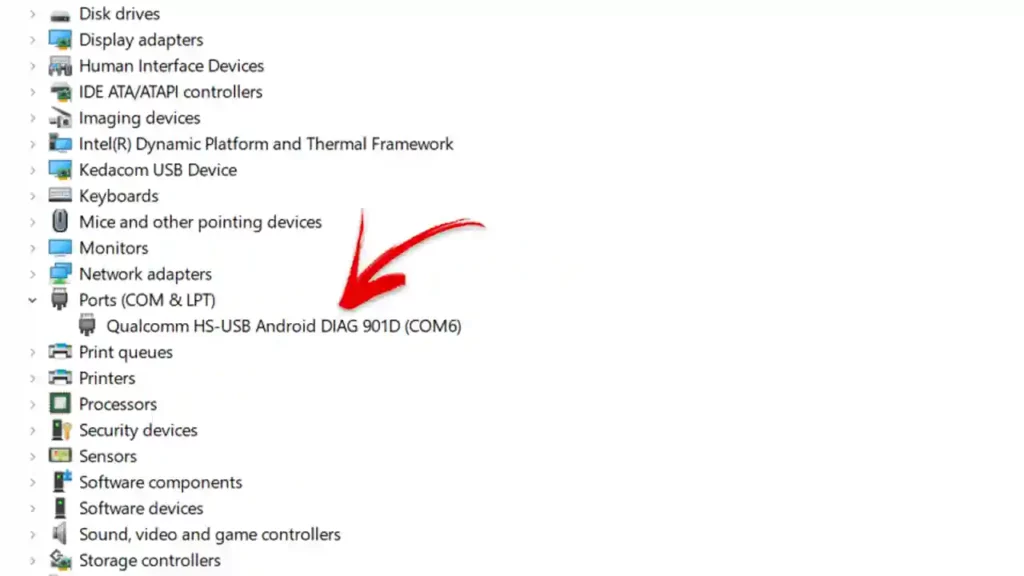
- Press
Win + Xand select Device Manager. - Expand the Ports (COM & LPT) category.
- Verify that Qualcomm HS-USB Diagnostics 900E (or
901D,9091) appears with an assigned COM port number (e.g.,COM5). - If the device appears under “Other devices” with a yellow exclamation point, right-click, choose Update driver, select Browse my computer for drivers, and select the installed Qualcomm driver directory.
Video Demonstration
Watch the complete dialer activation and ADB command execution workflow in this video walkthrough:
Troubleshooting Common Connectivity Issues
- Port Disappears Immediately: Some newer security patches automatically revert
sys.usb.configafter 30 seconds of inactivity. Keep QPST or QFIL running in the background before executing the ADB command. - USB 3.0 / 3.1 Controller Incompatibility: High-speed USB 3.0 controller chips can cause serial packet drops. Connect through a native USB 2.0 port or a passive USB 2.0 hub.
- Reverting to Normal Mode: When servicing is complete, revert your smartphone to standard MTP media transfer mode by running
adb shell setprop sys.usb.config mtp,adbor restarting the handset.