Zong Wingle W03 Unlock Package: Hardware Checks and Limits
The Zong Wingle W03 is a portable 4G LTE USB modem and Wi-Fi hotspot distributed by CMPak (Zong Pakistan). Hardware sold under one marketing name can come from different manufacturers. An authorized network unlock may allow another compatible operator, subject to hardware bands, local regulation, and carrier policy.
This guide records a legacy community package and the checks required before use. GSM6 has not verified that every W03 uses Huawei hardware, that the listed button sequence enters a supported diagnostic state, or that the package is authorized and authentic.
Technical Overview of the W03 Modem Architecture
The Zong Wingle W03 operates on an embedded LTE baseband modem architecture with integrated Wi-Fi routing. Network lock enforcement is controlled within the modem’s Non-Volatile RAM (NVRAM) partition, which stores carrier-specific network identity keys (MCC/MNC pairs) and SIMLock security flags.
[!WARNING] Carrier-branded modems like the Zong W03 are often manufactured by multiple OEMs (such as Huawei or ZTE). The following diagnostic instructions and Huawei-specific tools (DC-Unlocker, Huawei drivers) apply strictly to Huawei-manufactured variants. Before proceeding, verify your exact hardware manufacturer by checking the device label or web configuration portal. Do not apply Huawei diagnostic drivers or DC-Unlocker commands to non-Huawei variants, as this may result in a non-responsive device.
Standard web management interfaces prevent users from modifying these low-level parameters. To modify the carrier lock state without purchasing proprietary carrier subsidy unlock codes, the modem must be forced into its hardware download/diagnostic state. In this mode, the modem exposes diagnostic COM ports over USB, allowing software utilities such as DC-Unlocker to communicate via AT diagnostic commands and rewrite the SIMLock partition state.
Download Package Details
The archive claims to bundle drivers, firmware components, and an unlock utility. Its contents, publisher, and hashes were not independently verified during this audit.
| Attribute | Specification |
|---|---|
| Package Name | Zong_Wingle_W03_Unlock_Package.zip |
| File Size | ~150 MB |
| Archive Password | AM19x |
| Supported OS | Windows 7, Windows 10, Windows 11 (32-bit & 64-bit) |
| Core Contents | Diagnostic USB Drivers, DC-Unlocker Client, Patch Firmware, Reference Documentation |
You can access the archive here: Download Zong Wingle W03 Unlock Package.
Prerequisites and Equipment Checklist
Before beginning the unlocking workflow, prepare the following hardware:
- Windows PC: A system running Windows 7, 10, or 11 with administrative privileges to install unsigned or low-level virtual COM port drivers.
- Micro USB Data Cable: Ensure the cable supports complete data synchronization and is not a power-only charging cord.
- Power and Battery Safety: The W03 operates via USB power; connect the device directly to a dedicated rear motherboard USB port rather than an unpowered USB hub.
- Alternative SIM Card: An activated SIM card from another operational network provider (e.g., Jazz, Telenor, Ufone, or an international carrier) to verify network registration post-unlock.
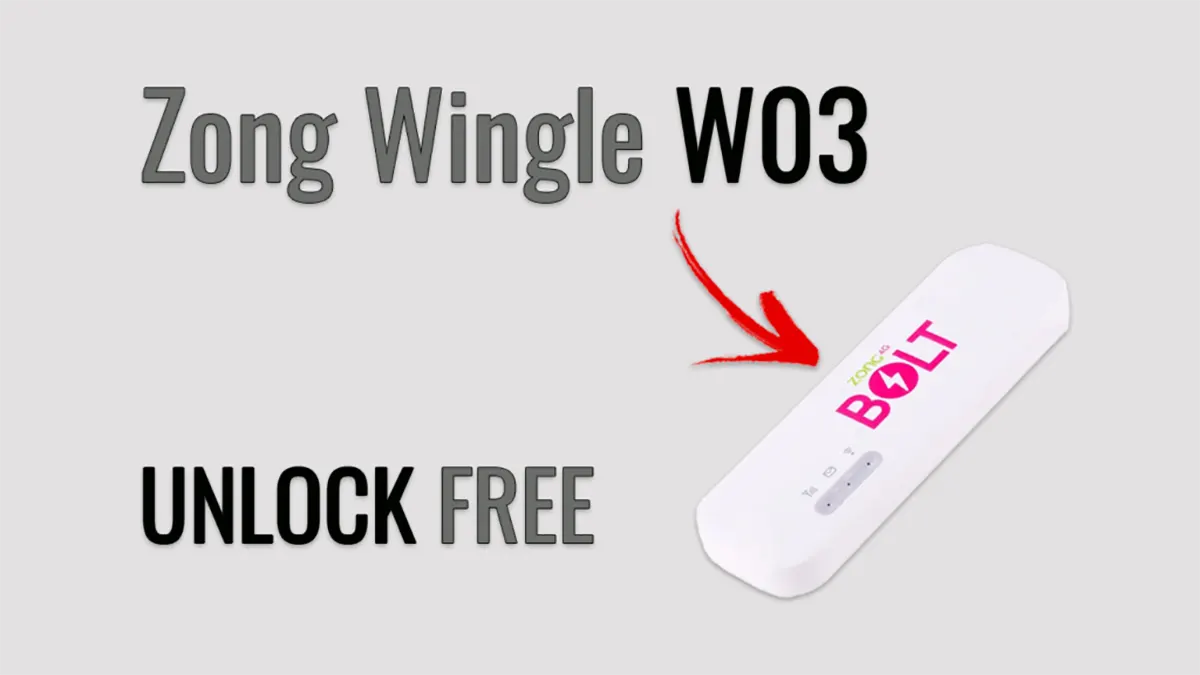
Zong Wingle W03 4G USB modem unlock procedure overview.
Step-by-Step Procedure to Unlock Zong Wingle W03
Proceed only if the device label and current DC-Unlocker documentation identify the exact hardware as supported. Otherwise stop and request an official carrier unlock.
1. Download and Extract W03 Unlock Firmware Package
- Download the
Zong_Wingle_W03_Unlock_Package.ziparchive to your local storage. - Right-click the archive and extract it using 7-Zip or WinRAR.
- Enter the extraction password
AM19xwhen prompted. - Verify that the folder contains
Driver_Setup.exe,DC-Unlocker.exe, and the accompanying configuration files.
2. Install Huawei Modem and Diagnostic USB Drivers
- Open the extracted folder and right-click
Driver_Setup.exe, then select Run as administrator. - Follow the setup wizard to install the Huawei modem and diagnostic serial communication drivers.
- Once installation concludes, restart your Windows computer to ensure driver filters are properly registered with the kernel.
3. Enter Download Diagnostic Mode on Wingle W03
To enable diagnostic port communication, the device must be powered on with hardware keys held down.
- Ensure the Wingle W03 is unplugged from the PC and powered off.
- Locate the Power button and the small recessed Reset button on the device housing.
- Press and hold both the Power and Reset buttons simultaneously for 10 seconds.
- While continuing to hold both buttons, plug the Micro USB cable into your computer’s USB port.
- Continue holding for 3 to 5 seconds after connection, then release.
- Open Windows Device Manager and check under Ports (COM & LPT). You should observe one or more diagnostic modem ports (such as
Huawei Mobile Connect - 3G PC UI Interfaceor similar diagnostic COM endpoints).
4. Detect Device and Execute Unlock in DC-Unlocker
- Navigate to the extracted folder, right-click
DC-Unlocker.exe, and select Run as administrator. - Under the Manufacturer dropdown menu, select Huawei modems.
- Under the Model selection, set the value to Auto detect or select Wingle W03.
- Click the Detect button (magnifying glass icon).
- The console log will query the modem over AT commands and output device details including IMEI, firmware revision, and lock status (
SIM Lock: Locked). - Navigate to the Unlocking tab on the right side of the interface.
- Click the Unlock button. DC-Unlocker will transmit the unlock payload directly to the NVRAM partition.
- Do not infer success from the log alone. After the operation, reboot and test an authorized, band-compatible SIM; retain the complete tool log and original firmware details.
5. Verify Network Unlock with Alternative SIM Card
- Disconnect the W03 modem from the computer.
- Remove the existing Zong SIM card from the device’s internal SIM slot.
- Insert an active alternative network SIM card.
- Plug the Wingle W03 back into a USB power source or PC USB port.
- Allow the device one minute to boot and acquire cellular signal.
- Open your web browser and navigate to the modem’s default gateway (typically
192.168.8.1). - Verify that the dashboard displays active cellular signal bars and registers on the alternative carrier’s LTE/GSM network.
Troubleshooting Diagnostic Communication Failures
Device Manager Shows Unknown USB Device
If the device appears with a yellow exclamation mark:
- Disconnect and reconnect using a different rear USB port.
- Manually update the driver by pointing Device Manager to the extracted driver folder.
DC-Unlocker Reports “Device Not Found”
- Ensure that the modem is in actual diagnostic mode rather than standard mass-storage mode.
- Repeat Step 3, holding both Power and Reset pins firmly during cable insertion.
- Temporarily close any background connection managers, PC suites, or monitoring software that might hold exclusive access to serial COM ports.
Video Tutorial: Zong Wingle W03 Unlock Walkthrough
For a step-by-step visual demonstration of the physical button combination and DC-Unlocker software operation, watch the video below:
Summary and Maintenance Notes
This audit has no device evidence that the change survives a factory reset or applies to every W03 hardware variant. Record the exact hardware ID, firmware, tool version, and post-operation network results rather than describing the outcome as universal or permanent.