How to Leave iOS 26 Beta and Return to Stable
Leaving an active iOS pre-release cycle and returning your iPhone to official, publicly signed Apple firmware is a routine procedure, but executing it without accidental data loss requires understanding how Apple structures build revisions. When an iPhone runs Developer or Public Beta software, its local operating system carries an elevated build identifier. You have two primary paths to return to production software: smoothly transitioning to the public release once Apple makes it available over the air, or executing an immediate clean restore via Recovery Mode.
This technical guide details how Apple handles beta channel entitlements, explains configuration profile differences across iOS versions, and provides step-by-step procedures for safely unenrolling modern iPhone hardware.
How Apple Manages Beta Channels and Build Numbers
Beginning with iOS 16.4, Apple retired the historic model of installing .mobileconfig configuration profiles for consumer and developer beta access. Modern iOS releases link beta participation directly to your authenticated Apple ID within the system software update menu. When your Apple account is registered with the Apple Beta Software Program or Apple Developer Program, iOS polls dedicated beta update catalogs.
To leave the beta without erasing user storage, turn off beta updates and wait until Apple offers a public build newer than the installed beta. An RC sometimes matches the public release, but that is not guaranteed for every cycle; compare actual build numbers rather than assuming no later download is needed.
If you must revert to a prior production release immediately (for example, if a pre-release beta introduces critical bugs or battery drain before the public branch ships), Apple’s cryptographic verification prevents an in-place downgrade. In that scenario, an immediate rollback requires a wired connection to a Mac or PC, placing the device into Recovery Mode, and restoring signed production IPSW firmware.
Methods for Unenrolling and Transitioning to Stable iOS
Depending on the version of iOS your device is running and whether you require an immediate rollback or a seamless OTA transition, follow the appropriate method below.
1. Turn Off Beta Updates in iOS Settings
For iPhones running iOS 16.4 or newer, switching off the beta distribution feed is handled entirely inside the native Settings interface without third-party utilities.
- Open the Settings app on your iPhone.
- Navigate to General > Software Update.
- Select Beta Updates (this menu only appears when your device is enrolled in a beta channel).
- Tap Off to disable incoming developer or public test builds.
- Tap the back arrow to return to Software Update. Your device will now poll solely for public production releases.
2. Remove Configuration Profile on Legacy iOS Versions
On legacy iOS environments (iOS 16.3.1 and earlier) or enterprise configurations deploying provisioning profiles, beta access was granted via installed configuration payloads.
- Open Settings on your iPhone.
- Tap General, then scroll down and select VPN & Device Management.
- Under the Configuration Profile header, tap iOS Beta Software Profile.
- Tap Remove Profile and enter your device passcode when prompted.
- Confirm the removal and restart your iPhone to clear cached update tokens.
3. Unenroll Apple Account via Safari Browser
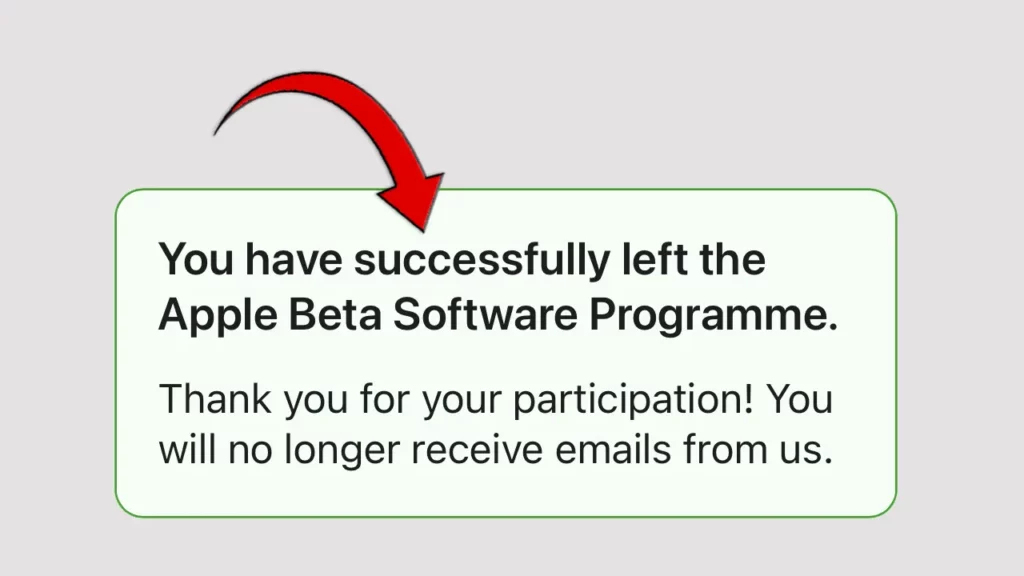
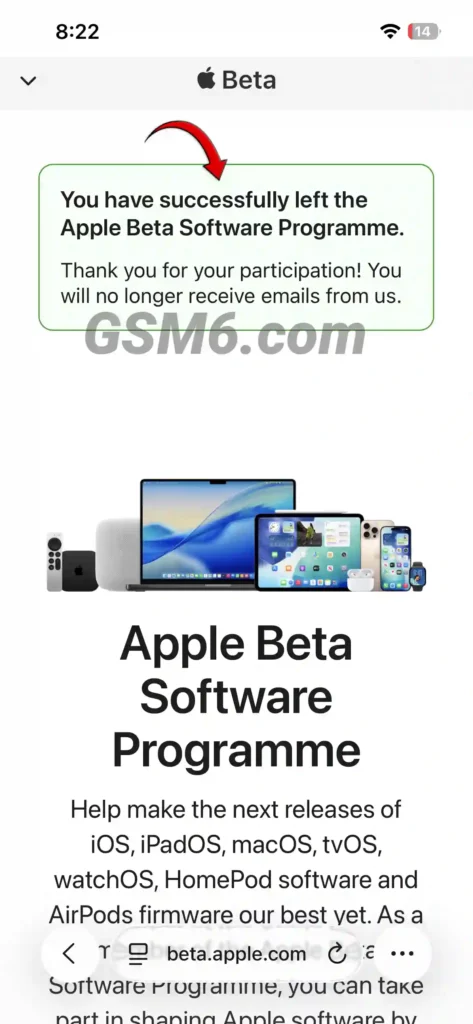
To leave the Apple Beta Software Program at the account level, use Apple’s unenrollment page. Device update-channel settings still need to be checked individually.
- Open Safari on your device or computer and navigate to the Official Apple Beta Unenroll Page.
- Sign in using the Apple ID credentials associated with your beta enrollment.
- Scroll to the bottom of the enrollment overview page.
- Select the option labeled Leave the Apple Beta Software Program.
- Confirm your selection. Your Apple account will no longer receive pre-release entitlements during server-side update checks.
4. Install Official Public Release via Software Update
Once you have toggled off beta updates, your iPhone will remain on its current build until Apple releases a public build that carries an equal or higher build number.
- Connect your iPhone to an active Wi-Fi network and verify battery capacity is above 50% or connect the device to power.
- Open Settings > General > Software Update.
- When the public release is published by Apple, the update prompt will appear on screen.
- Tap Download and Install, enter your passcode, and accept the terms of service.
- Allow the installation to finish and reboot. Your device is now running public production firmware.
5. Perform Recovery Mode Restore for Immediate Downgrade
If an active beta causes critical operational failures and you cannot wait for the final public release, you must perform a clean restore via computer.
- Back up your critical data: Save photos to iCloud Photos and synchronize documents, notes, and contacts. Note that a full device backup created on a newer beta cannot restore directly to an older iOS version.
- Connect your iPhone to a computer running macOS Finder, iTunes, or the Apple Devices app on Windows via a verified USB cable.
- Trigger Recovery Mode:
- For iPhone 8 and later: Press and quickly release Volume Up, press and quickly release Volume Down, then press and hold the Side power button until the computer and cable icon appears on screen.
- Your computer will display a dialog stating that there is a problem with the iPhone that requires it to be updated or restored.
- Select Restore. The computer downloads the latest publicly signed iOS IPSW file from Apple and completely reformats the device storage.
- Once the restore finishes, set up your device as new or restore a backup taken prior to beta enrollment.
Video Tutorial: Exiting iOS Beta Channels
For a visual demonstration of navigating iOS settings and verifying software update channels, watch the tutorial below:
Key Takeaways and Verification
After following these steps, confirm the installed version and build in Settings > General > About. Verify it against Apple’s current release information; build-string appearance alone is not proof of release channel.