Download Older Pixel 6a Firmware (bluejay) | Android 14 / 15 Stock
System administrators, software developers, and mobile technicians frequently require legacy factory images and over-the-air (OTA) update packages for the Google Pixel 6a (codename bluejay). When conducting forensic analysis, debugging OS regressions, or restoring handsets from unbootable partition states, access to specific earlier Android versions is essential.
Older packages are sometimes preserved by third-party archives after they are no longer prominent on Google’s download page. A syntactically valid checksum copied by a mirror establishes neither authenticity nor compatibility. Prefer Google’s current factory images or full OTA images, and do not flash an archived package unless its hash can be matched to an authoritative release record and its bootloader is compatible with the device.
Technical Context: The Need for Legacy Firmware
While consumer devices typically stay on the latest security patch stream, technical environments often require legacy firmware builds for distinct diagnostic and operational reasons:
| Operational Objective | Technical Requirement | Strategic Value |
|---|---|---|
| Bootloop and Soft-Brick Recovery | Full factory image partition table | Restores damaged boot, vendor, system, and modem partitions cleanly |
| Custom ROM Baseline Preparation | Clean OEM firmware installation | Provides stable vendor firmware layers required by AOSP projects like LineageOS |
| Regression and Compatibility Testing | Specific Android API releases | Enables developers to isolate OS-level bugs across major Android transitions |
| Modem Calibration Troubleshooting | Earlier baseband radio images | Assists in diagnosing baseband firmware desynchronization and null IMEI faults |
Anti-Rollback Protections and Downgrade Hazards
Before flashing older firmware packages onto a Pixel 6a, technicians must understand the constraints imposed by Android Verified Boot (AVB) and the Titan M2 security coprocessor.
Modern Google Tensor architectures enforce hardware-backed Anti-Rollback Protection (ARB). Google’s instructions contain specific anti-rollback and slot requirements, particularly noting the May 2025 Pixel 6/8 changes. A generic major Android version comparison is not a substitute for checking exact bootloader versions.
[!WARNING] Google warns that after a Pixel 6/6 Pro/6a successfully boots the May 2025 update or later, an older Android 15 build must not be flashed or booted from the inactive slot because of the increased bootloader anti-rollback version. Both slots must receive a compatible bootloader before rebooting. Always follow the current warning on Google’s factory-image page; Android version labels alone are insufficient.
Related technical guide: How to Flash Google Pixel Handsets via Web Browser and Fastboot
The following tables document build identifiers, release dates, package classifications, and structural checksums for Google Pixel 6a factory images and OTA packages. The provided SHA-256 hashes have the expected syntax but have not been independently validated against downloaded archives or an OEM manifest. Do not treat them as verified.
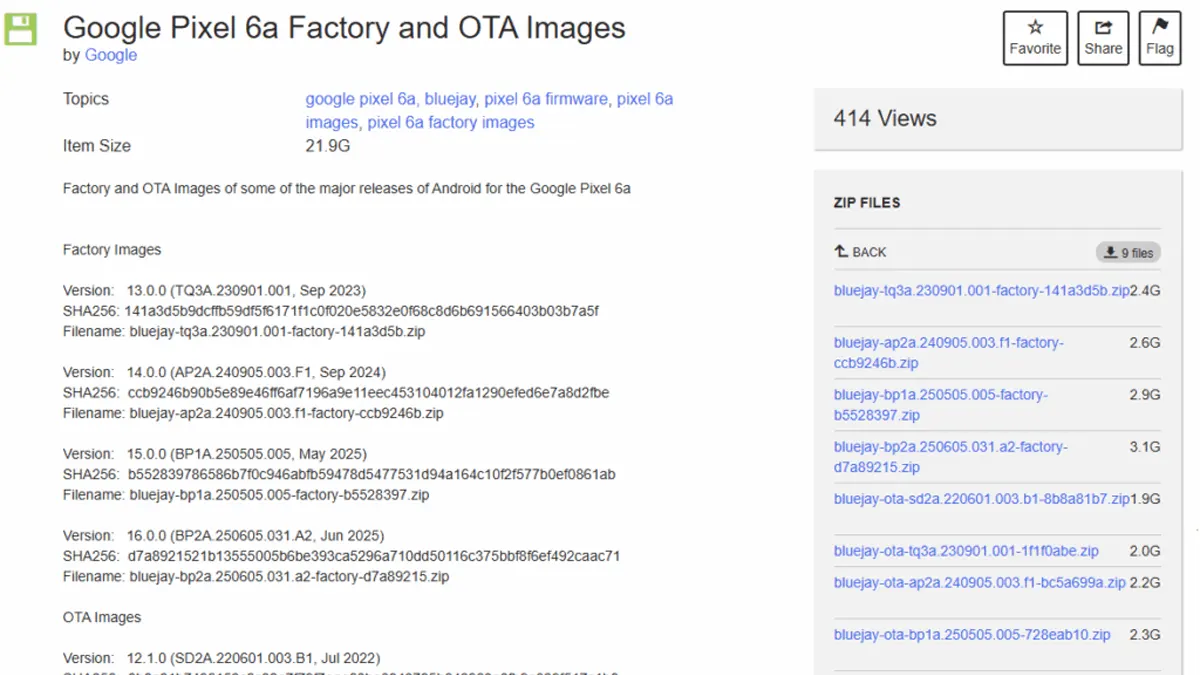
Above: Google Pixel 6a factory firmware archives spanning Android 12, 13, 14, 15, and 16.
Fastboot Factory Images (Full Flashing Packages)
Factory images require an unlocked bootloader and flash the complete device partition layout:
Version 13.0.0 (TQ3A.230901.001, September 2023)
- Target OS: Android 13
- Archive File:
bluejay-tq3a.230901.001-factory-141a3d5b.zip - SHA-256 Hash:
141a3d5b9dcffb59df5f6171f1c0f020e5832e0f68c8d6b691566403b03b7a5f - Archive Mirror Download
Version 14.0.0 (AP2A.240905.003.F1, September 2024)
- Target OS: Android 14
- Archive File:
bluejay-ap2a.240905.003.f1-factory-ccb9246b.zip - SHA-256 Hash:
ccb9246b90b5e89e46ff6af7196a9e11eec453104012fa1290efed6e7a8d2fbe - Archive Mirror Download
Version 15.0.0 (BP1A.250505.005, May 2025)
- Target OS: Android 15
- Archive File:
bluejay-bp1a.250505.005-factory-b5528397.zip - SHA-256 Hash:
b552839786586b7f0c946abfb59478d5477531d94a164c10f2f577b0ef0861ab - Archive Mirror Download
Version 16.0.0 (BP2A.250605.031.A2, June 2025)
- Target OS: Android 16
- Archive File:
bluejay-bp2a.250605.031.a2-factory-d7a89215.zip - SHA-256 Hash:
d7a8921521b13555005b6be393ca5296a710dd50116c375bbf8f6ef492caac71 - Archive Mirror Download
Full OTA Update Packages (Recovery Sideload)
Full OTA images are flashed via stock recovery without requiring an unlocked bootloader and preserve user data when upgrading or reinstalling the current OS build:
Version 12.1.0 (SD2A.220601.003.B1, July 2022)
- SHA-256 Hash:
8b8a81b7496152c6c02e7f79f7eae60be0843785b042963a3fb9e329f517c1b8 - Archive File:
bluejay-ota-sd2a.220601.003.b1-8b8a81b7.zip - Archive Mirror Download
Version 13.0.0 (TQ3A.230901.001, September 2023)
- SHA-256 Hash:
1f1f0abe67a6f6f47287be6dafec2c12628de6a715b82ca7beddaf67ad22aca5 - Archive File:
bluejay-ota-tq3a.230901.001-1f1f0abe.zip - Archive Mirror Download
Version 14.0.0 (AP2A.240905.003.F1, September 2024)
- SHA-256 Hash:
bc5a699a4d37ae146c56b499ce9a7742c1d72bc9e1977859c71378321c3407d3 - Archive File:
bluejay-ota-ap2a.240905.003.f1-bc5a699a.zip - Archive Mirror Download
Version 15.0.0 (BP1A.250505.005, May 2025)
- SHA-256 Hash:
728eab10ee8393a04503e2f79cfe441f7f287a6dda4ba207d0550632009f6904 - Archive File:
bluejay-ota-bp1a.250505.005-728eab10.zip - Archive Mirror Download
Version 16.0.0 (BP2A.250605.031.A2, June 2025)
- SHA-256 Hash:
71681dcb1b6a9492aab6b463986297a08cda2e68a3de026c53c954e75092d045 - Archive File:
bluejay-ota-bp2a.250605.031.a2-71681dcb.zip - Archive Mirror Download
Step-by-Step Firmware Flashing Workflow
Follow this procedure to verify and flash factory images to your Google Pixel 6a safely.
1. Download a Factory Image or OTA Archive
Select the appropriate build matching your testing or recovery requirements from the archival links above. Ensure you have downloaded the full archive without browser interruptions.
2. Verify SHA-256 Cryptographic Checksum
Before executing any write operation, compute the cryptographic hash of the archive:
- On Windows PowerShell, execute:
Get-FileHash -Algorithm SHA256 .\bluejay-*.zip - On Linux or macOS, run:
sha256sum bluejay-*.zip - Compare the result with a hash published by Google for that exact release. The hashes in the third-party tables above were not independently verified during this audit and must not be treated as an authoritative manifest. If no authoritative match is available, do not flash the archive.
3. Check Android Anti-Rollback Index Compatibility
Verify the bootloader version currently running on your Pixel 6a:
- Put your handset into fastboot mode by holding Volume Down and Power.
- Connect the device to your PC and query the bootloader:
fastboot getvar version-bootloader - If your device is running a build with incremented ARB protection, ensure that the firmware you intend to flash contains a matching or higher bootloader major version to avoid triggering anti-rollback lockout.
4. Configure Platform Tools and Unlock Bootloader
For flashing full factory images, ensure your bootloader is unlocked:
- Download and extract the latest Android SDK Platform Tools.
- In fastboot mode, issue the command:
fastboot flashing unlock - Confirm the prompt on your device screen using the volume rocker and power key. Remember that this action erases all data on the phone.
5. Flash Factory Firmware Partitions via Fastboot
Extract the verified factory image archive into your platform-tools folder:
- On Windows, execute the automated script:
flash-all.bat - On macOS or Linux, ensure executable permissions and run:
chmod +x flash-all.sh ./flash-all.sh - The script flashes the updated bootloader, reboots to fastbootd, writes the radio, system, vendor, and product partitions, and handles slot switching automatically. Do not disconnect the USB cable during this process.
6. Verify System Initialization and Baseband Status
Once the flashing script confirms completion:
- The handset will reboot automatically into the Android initial setup environment.
- Complete the initial setup wizard and navigate to Settings → About phone.
- Confirm that the build number matches the intended firmware release.
- Open the dialer and enter
*#06#to verify that both the primary IMEI and baseband firmware string report correctly.
Firmware Archival and Flashing Considerations
Where can I locate Pixel 6a factory images if removed from developer portals?
Third-party archives may retain older packages, but their presence does not authenticate them. Use one only when its full SHA-256 value can be matched to an authoritative Google release record and the build is compatible with the device’s rollback state.
What is the difference between Pixel 6a factory images and OTA packages?
Factory images replace device partitions through fastboot and normally require an unlocked bootloader. Full OTA packages can be sideloaded through stock recovery without unlocking, but neither path is a blanket data-preservation guarantee; follow Google’s instructions and keep a backup.
Why does flashing older firmware cause a hard brick on Pixel 6a?
Google documents a bootloader anti-rollback increase for Pixel 6/6 Pro/6a beginning with the May 2025 update. After that update boots, an older Android 15 build must not be flashed or booted from the inactive slot. Google’s public warning does not support attributing the enforcement mechanism here specifically to Titan M2 eFuses.
How can I verify that a downloaded firmware image is authentic?
Calculate the SHA-256 checksum of your downloaded zip file using PowerShell or terminal sha256sum commands, and verify that the resulting string matches the published Google manifest hash byte for byte.
Does flashing a factory image re-lock the bootloader automatically?
No. The flash-all script does not relock the bootloader. If desired, you must execute fastboot flashing lock manually after confirming system stability, which will enforce a final factory data wipe.