Samsung USB Drivers: Official Download and Windows Setup Guide
Samsung’s Android USB driver helps a Windows computer communicate with a Galaxy device over USB. It is useful when a development or service application cannot detect the phone, but installing it is not a universal fix for every connection problem. A charge-only cable, the selected USB mode, or an unanswered authorization prompt can produce similar symptoms.
Start by identifying the connection you need. Copying photographs, running ADB, and connecting a phone in Download Mode are different tasks, so a successful test in one mode does not prove the others are ready.
Which connection are you trying to use?
| Task | What to check first | What a working connection looks like |
|---|---|---|
| Copy files to a PC | Phone unlocked, data-capable cable, File transfer selected | The phone’s accessible storage appears in File Explorer |
| Use ADB or Android Studio | USB debugging enabled and this computer authorized | ADB lists the serial number with the state device |
| Connect a service tool in Download Mode | Exact model’s mode-entry procedure and the tool’s requirements | Windows recognizes the interface and the intended tool detects it |
| Make a Smart Switch backup | Supported phone, current Smart Switch application and on-phone permissions | Smart Switch identifies the device and offers the applicable backup options |
The driver does not install ADB itself. That executable is part of Android SDK Platform-Tools. Nor does the driver turn Download Mode into Fastboot: use instructions written for your exact Galaxy model instead of assuming a generic Android command applies.
Windows and device compatibility
Samsung publishes this package for Windows, but its download page does not provide an exhaustive model, processor-architecture and legacy-Windows compatibility matrix. Check the requirements for your computer rather than treating the package name as proof of universal support.
For a work PC, check with its administrator before changing drivers. For Windows on ARM or an older Windows release, confirm compatibility with the publisher before proceeding. A Galaxy Book PC also needs its own model-specific PC drivers; this Android-phone package is not a replacement for them.
On macOS and Linux, do not run the Windows installer. Android’s development setup differs by operating system: Linux can need device-access rules and permissions. File-transfer applications are a separate consideration from ADB. See Android’s hardware-device setup documentation for that distinction.
Preparation before installation
- Record the phone’s model number and the PC’s Windows version. If an application reports an error, save the exact message.
- Test a known data-capable USB cable and a direct computer port. Charging alone does not demonstrate that the data connection works.
- Close applications using the phone, and finish any active file transfer or backup before disconnecting it.
- Open Device Manager and note the entry that appears when you connect the phone. An error code is more useful than a guessed driver name.
- Keep Windows security protections enabled. If an installer is blocked, investigate its source and the reported error before trying again.
There is no need to enable OEM unlocking, change account protections, or erase the phone to install a USB driver. Do not remove every USB driver on the PC as a preparation step.
Official Samsung USB driver download
The following details were checked on Samsung’s developer page on September 26, 2026. The link opens the publisher’s download page, not a GSM6-hosted installer.
| Detail | Publisher listing |
|---|---|
| Package | Samsung Android USB Driver for Windows |
| Version | 1.9.5.0 |
| Listed file size | 35.5 MB |
| Listed release date | May 6, 2026 |
| Source | Open Samsung’s official USB driver download page |
Use the version currently offered there if the listing changes. If the publisher supplies a checksum, compare it with the exact package you downloaded; a hash from another release will not validate your file.
For ADB commands, also follow the Platform-Tools installation guide. Install Smart Switch only if you need its backup or migration functions; it is not necessary to add unrelated applications just to troubleshoot a driver.
Install the Samsung driver
1. Check the installer
Download the package from the Samsung page above and open the downloaded file’s Properties. Inspect its publisher/signature information when available. If Windows reports an invalid signature, an unexpected publisher, or an incompatible package, stop and resolve that specific error. Do not disable signature enforcement to make an unknown package install.
2. Run the setup wizard
With phone-management applications closed, launch the installer and approve Windows elevation only after checking that it is the intended Samsung package. Follow the setup prompts, including any instructions about connecting or disconnecting the phone. Restart the PC if setup requests it.
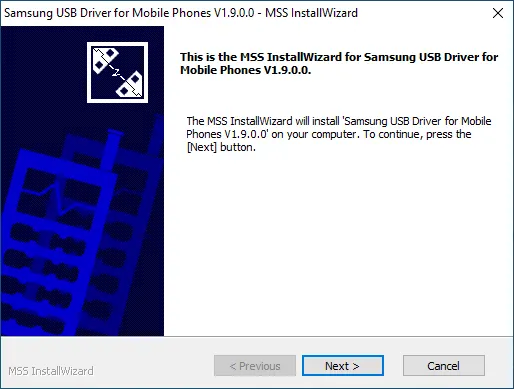
Samsung installer welcome screen. Wording and appearance may differ between releases.
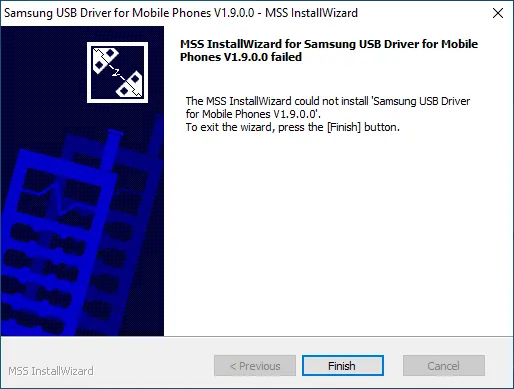
Finishing setup installs the package; the next step is to test the phone in the mode you actually need.
3. Reconnect and inspect detection
Connect the phone directly to the PC and allow Windows time to configure the device. Open Device Manager again and compare the entries with your earlier notes. The names and categories depend on the phone’s active USB mode; you should not expect every interface in the screenshot to appear at once.
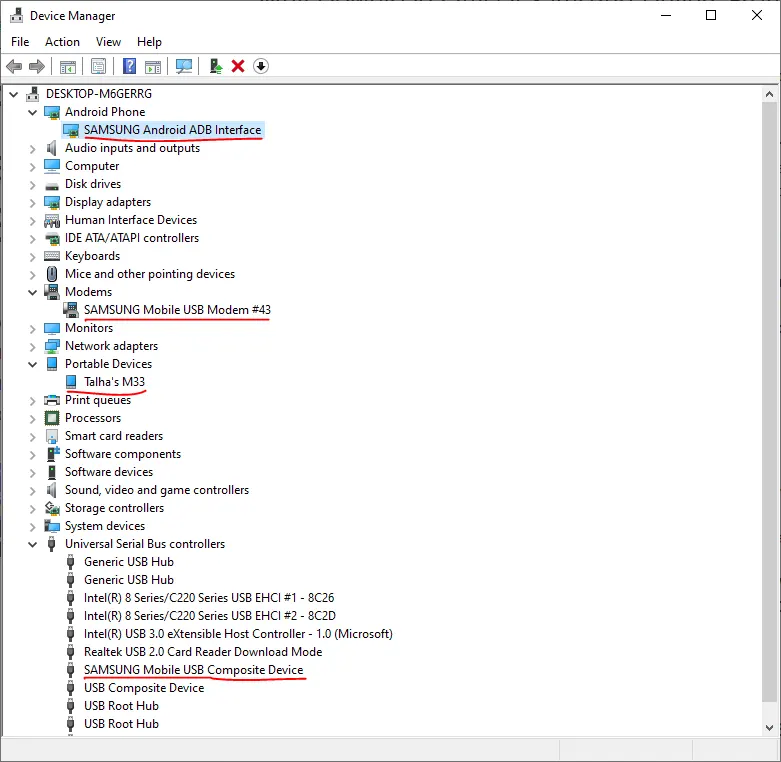
If an entry has a warning symbol, open its Properties and record the status message and error code. The presence of a Samsung entry alone is not proof that file transfer or a service operation will succeed.
4. Test the intended connection
For file transfer, unlock the phone, choose File transfer from the USB notification if available, and copy a small non-sensitive file. Confirm that the copy opens correctly before starting a large transfer.
For ADB, enable USB debugging and connect only to a computer you trust. Open PowerShell in your extracted Platform-Tools directory and run:
.\adb.exe devicesApprove the phone’s computer-authorization prompt if you recognize the connection. A serial number followed by device indicates an authorized ADB connection. unauthorized means the host has not been approved; repeatedly reinstalling the driver does not answer that prompt. Android documents this authorization requirement in its ADB guide.
For Download Mode, use the exact model’s procedure. Confirm detection without starting a flash simply to test a driver. Successful detection does not establish firmware compatibility.
Troubleshoot the remaining symptom
The phone charges but does not appear in File Explorer
Check that the cable carries data, the phone is unlocked, and its USB option is set to File transfer. Try a second cable and direct USB port, changing one thing at a time. If neither PC nor phone responds to the data connection, record that result before altering drivers.
ADB shows an empty list or an authorization error
Check USB debugging and the on-screen authorization prompt. Ensure you are using the intended Platform-Tools installation rather than an older ADB executable bundled with another application. If needed, close other ADB-based applications and restart the local ADB server:
.\adb.exe kill-server
.\adb.exe start-server
.\adb.exe devices
Restarting the server interrupts other ADB sessions on that PC. If unauthorized persists, reconnect and review the phone’s debugging authorizations. Do not enable OEM unlocking as a connection fix.
Windows blocks the installer or reports a device error
Use the exact error to guide the next step. Check that the package came from Samsung, that it matches the PC, and that your account can install drivers. On a managed PC, the administrator may need to approve installation. If a previous installation is damaged, use its normal repair or uninstall option before reinstalling; do not bulk-delete unrelated USB devices or registry entries.
A service tool detects the phone but the operation fails
Detection and execution are separate stages. An Odin connection message, for example, does not prove the selected firmware matches the device or that the operation is permitted. Read the operation log and consult the model-specific procedure. Turning off Find My Mobile or other account protections is not a USB-driver repair step.
Video walkthrough
The existing video provides a visual installation reference. Use the current publisher download and the checks above if its interface or version differs.
Confirm the result
A useful result is a working connection for your intended task, not just a completed installer. Keep a note of the driver version and any remaining error. Once debugging work is finished, turn off USB debugging when you no longer need it and remove authorizations for computers you no longer trust.