Samsung Test Mode *#0*#: Hardware Checks and Auto Blocker Troubleshooting
On supported Samsung Galaxy phones, entering *#0*# in the Phone app opens a hardware-test menu. If it does not open, Auto Blocker is one possible cause—not proof that the phone is faulty or that disabling a single setting will fix every device.
Use the menu to investigate a particular symptom, such as a touchscreen area that misses input or a speaker that produces no sound. When the dialer menu is unavailable, Samsung Members provides another route to phone diagnostics without hunting for undocumented service codes.
What Samsung Test Mode can tell you
Hardware tests isolate individual functions so you can compare a reported fault with a repeatable result. They are useful before and after a repair, or while inspecting a used phone with its owner’s permission. A passing test only describes the behavior tested at that moment; it is not a certificate that every component is healthy.
Samsung documents the diagnostic code in its Galaxy S5 hardware-test guide. That older model-specific reference explains the menu’s purpose, not a universal compatibility list for current phones.
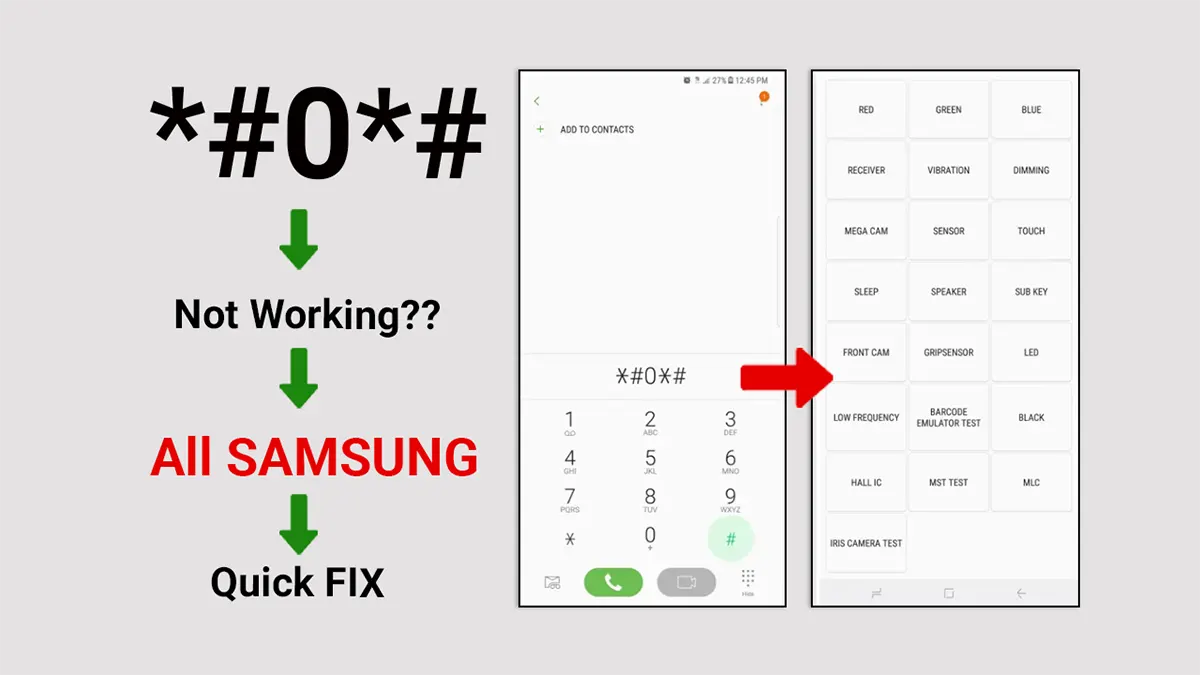
Diagnostic menu walkthrough. Enter the code as *#0*#; the available menu depends on the device.
Prepare a useful diagnostic check
Write down the symptom before starting. “Touch stops responding near the lower-right corner after ten minutes” gives you something concrete to reproduce; “the phone is bad” does not.
Record the model and software version, charge the phone sufficiently for the checks, and stop active calls or recordings. For display and camera checks, clean visible smudges first. Note whether a case or screen protector is fitted so that a repeat test under changed conditions is meaningful.
You do not need root access, bootloader unlocking, a PC driver or a firmware download to try the phone’s built-in diagnostic interface. Avoid changing the firmware merely because a code fails to open.
Open and use the diagnostic menu
1. Try the code in the Phone app
Open the Samsung Phone keypad on the unlocked phone and enter *#0*# exactly. On a supported configuration, the menu opens after the final character; it is not a telephone number you need to call. If nothing happens, clear the entry and continue with the next check.
2. Check Auto Blocker if the menu does not open
Samsung’s speaker-troubleshooting instructions specifically suggest checking Auto Blocker when this code does not work. Go to Settings → Security and privacy → Auto Blocker, record its current state, and temporarily turn it off if you are authorized to change it. Complete the authentication requested by the phone, then retry the code once.
If the menu still does not open, restore the setting and use the Samsung Members alternative below. Do not substitute #0#, ##0## or a random service-mode application: they are not verified replacements for this code. See the Auto Blocker settings guide for the setting’s scope and version differences.
3. Run the check relevant to the symptom
Select only the checks offered on your phone and follow their on-screen instructions. Labels and available tests vary; the examples below are not a required list for every Galaxy model.
| Test or group | Useful observation to record |
|---|---|
| Red, Green, Blue | A visible dot, patch or line that persists on a plain color |
| Touch | A part of the test area that repeatedly fails to register input |
| Receiver or Speaker | Whether the selected output produces sound, distortion or silence |
| Vibration | Whether the phone responds when the test requests vibration |
| Front or rear camera | Whether the camera opens and can focus on the test subject |
| Sensor | Whether the displayed readings respond to the action the test requests |
These categories are illustrated in Samsung’s older hardware-test documentation. Do not select firmware-update, calibration or reset controls as part of a basic observation check. A label such as TSP FW Update describes a different kind of operation, not simply another color or touch test.
4. Exit and restore changed settings
Complete the test’s exit instructions or return using the device’s normal Back navigation where supported. Some interactive tests require you to finish their on-screen pattern first. If the interface becomes unresponsive, consult the restart instructions for the exact model instead of trying more service codes.
If you changed Auto Blocker, return to its menu and restore the setting after testing. Check that it is enabled when that is your intended configuration. There is no need to keep it off while waiting for repair advice.
Use Samsung Members when the code is unavailable
Samsung’s supported diagnostic application is a practical alternative, not evidence that the dialer menu must be forcibly enabled. Open Samsung Members, find Diagnostics on the Discover or Support tab, and select Phone diagnostics. Choose one test or Test all, follow the prompts, and review any suggested next steps. Samsung notes that menu names and tests vary by model and software in its current diagnostics guide.
If Members is not installed, obtain it from the Galaxy Store or Google Play listing identified by Samsung’s support page. You do not need a modified diagnostics APK. On supported software, Settings → Device care → Diagnostics offers another entry point to phone diagnostics.
Interpret the result before replacing parts
| Observation | Sensible next step |
|---|---|
| The problem repeats in a component test | Record the test name and behavior for a repair assessment |
| Diagnostics pass but the problem occurs in one app | Reproduce it in that app and record its settings and version |
| The code is unavailable but Members tests work | Use the available diagnostic route; menu absence alone is not a hardware fault |
| An intermittent fault does not appear during testing | Record when it happens and what changes before it occurs |
| A menu item shown in a video is missing | Check the model and software rather than assuming a damaged component |
For a speaker issue, for example, Samsung’s troubleshooting guide uses the test to help distinguish normal speaker output from a problem that needs further investigation. It does not establish that reinstalling firmware or replacing a speaker is always the next step.
When sharing results, include the model, software version, test name and repeatable symptom. Hide account information, device identifiers and personal notifications in any screenshots. A technician can act on that record more effectively than a general “all tests failed” description.
Video demonstration
The existing demonstration shows one diagnostic workflow. Use it to recognize the interface, while following the model and software limits above.
What to do next
Use Test Mode or Samsung Members to narrow the problem, then return the phone to its normal configuration. Keep repeatable failures for the repair record and investigate application-specific issues separately. Opening a diagnostic menu is a starting point for diagnosis, not a repair by itself.