
GSM6 Pixel 6 Series Toolkit v1.0 - IMEI 0000 Fix with One Click [FREE]
Google Pixel 6 series devices—including the Pixel 6 (Oriole), Pixel 6 Pro (Raven), and Pixel 6a (Bluejay)—can encounter critical cellular modem failures following interrupted OTA software updates or partition desynchronization. In this corrupted state, the dialer reports IMEI 000000000000000 or null baseband, completely disabling cellular calling, mobile data, and emergency communications.
The GSM6 Pixel 6 Series Toolkit v1.0 is a focused command-line utility for Windows and Linux that packages calibrated factory radio images, automated Fastboot partition flashing, and bootloader state controls into a simple, menu-driven script.
Technical Overview and Requirements
Modem communication on the Google Tensor G1 platform relies on the Samsung Shannon 5123 modem subsystem. Unlike Qualcomm devices that require emergency download (EDL) flashing, Tensor devices restore cellular partition parameters over Fastboot.
| Requirement | Specification | Importance |
|---|---|---|
| Supported Handsets | Google Pixel 6, Pixel 6a, or Pixel 6 Pro | Mandatory |
| Workstation OS | Windows 10/11 (32-bit & 64-bit) or Linux | Mandatory |
| USB Drivers | Google USB Driver properly bound in Device Manager | Essential |
| Cable | High-quality USB Type-C data transfer cable | Critical |
| Bootloader State | Unlocked during flashing operations | Mandatory |
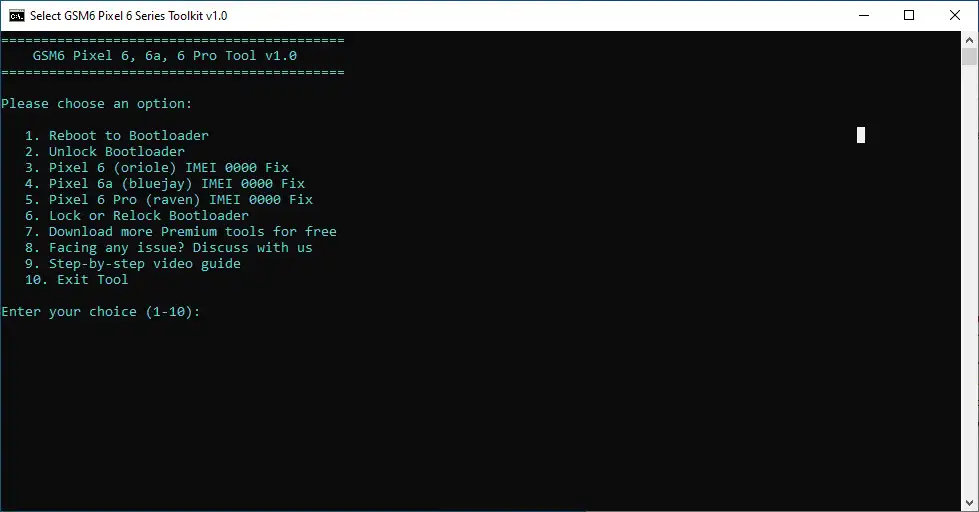
Toolkit Menu Actions
- Option 1: Reboots the connected device directly into bootloader mode (
adb reboot-bootloader). - Option 2: Unlocks the device bootloader to enable raw partition writes (
fastboot flashing unlock). - Option 3: Flashes the calibrated radio firmware image for Google Pixel 6 (
fastboot flash radio radio_files/pixel6.img). - Option 4: Flashes the calibrated radio firmware image for Google Pixel 6a (
fastboot flash radio radio_files/pixel6a.img). - Option 5: Flashes the calibrated radio firmware image for Google Pixel 6 Pro (
fastboot flash radio radio_files/pixel6pro.img). - Option 6: Relocks the bootloader after repair to restore Android Verified Boot enforcement (
fastboot flashing lock).
Critical Safety Notice: Unlocking the bootloader initiates an automatic cryptographic wipe of all user storage. Always back up personal data prior to execution. Repair operations should only be conducted to restore original hardware functionality on legitimately owned hardware.
For repairing newer generations including Pixel 7, 8, or 9 series, see our Google Pixel IMEI repair guide.
Download: GSM6 Pixel 6 Series Toolkit v1.0
Download only after verifying the release hash and publisher. This audit did not authenticate the archive or establish an exact model/build/result matrix for its repair operations.
Package Specifications
| Specification | Details |
|---|---|
| Tool Name | GSM6 Pixel 6 Series Toolkit |
| Version | v1.0 (Portable Command Runner) |
| Supported OS | Windows 7, 8, 10, 11 / Linux |
| Archive Size | ~50 MB |
| License | Free Technician Utility |
| Archive Password | gsm6.com |
| Compatible Models | Pixel 6, Pixel 6a, Pixel 6 Pro |
- Primary Download: Download GSM6 Pixel 6 Series Toolkit (MediaFire)
- Secondary Mirror: Download GSM6 Pixel 6 Series Toolkit (MEGA)
Companion Drivers and Utilities
Ensure your computer communicates reliably with fastboot interfaces:
- Install the latest Samsung and Android USB Drivers or Google USB Driver.
- If you prefer working directly with standalone binaries, review our Android Platform Tools setup guide.
Step-by-Step Restoration Procedure
1. Download and Extract the Toolkit Archive
Prepare the working folder on your PC.
- Download the toolkit zip package from the download section above.
- Extract the archive contents using WinRAR or 7-Zip with the password
gsm6.com. - Confirm that the directory structure contains
Pixel_Tool.cmd, theplatform-toolsfolder, and theradio_filesfolder containing model-specific image files.
2. Enable Developer Options and USB Debugging
Configure low-level Android permissions on the phone.
- Open Settings > About phone on your Pixel.
- Tap Build number 7 consecutive times to activate Developer options.
- Navigate to Settings > System > Developer options.
- Enable the toggle switches for OEM unlocking and USB debugging.
3. Connect Pixel 6 Handset to Host Computer
Establish synchronization between the handset and command script.
- Connect your Pixel 6, 6a, or 6 Pro to the PC using a verified USB Type-C data cable.
- When the phone screen displays Allow USB debugging?, select Always allow from this computer and tap Allow.
- Double-click
Pixel_Tool.cmdto open the command console.
4. Select Hardware Model and Flash Calibrated Radio Image
Deploy the calibrated modem partition to the handset.
- If the handset is still running Android, choose Option 1 to reboot the phone into Fastboot mode.
- If the bootloader is locked, choose Option 2 (
fastboot flashing unlock) and confirm the unlock prompt on the device display. - From the menu, enter the number matching your exact model:
- Press 3 for Pixel 6 (Oriole)
- Press 4 for Pixel 6a (Bluejay)
- Press 5 for Pixel 6 Pro (Raven)
- The script will write the clean radio partition image over Fastboot and return an execution confirmation.
5. Verify Cellular Connectivity and Relock Bootloader
Treat a tool success message as an operation log, not proof of a repaired modem. Test the original factory identity, baseband, calls, SMS, data, reboot persistence, and the exact update transition if one is attempted.
- Reboot your smartphone using
fastboot reboot. - Allow Android to initialize and open the phone dialer.
- Enter
*#06#to verify that your original 15-digit IMEI appears correctly instead of all zeros. - Insert a working SIM card to confirm network signal, 4G/5G data connection, and voice calls.
- If the handset is on clean stock firmware, reboot into Fastboot and choose Option 6 to relock the bootloader for factory security.
Video Demonstration
Watch the complete IMEI 0000 repair workflow on a Google Pixel 6 running modern Android firmware:
Troubleshooting Common Errors
- Waiting for Any Device: The phone is not in Fastboot mode or the Google USB Driver is not bound to the bootloader interface. Check Device Manager on Windows.
- Antivirus False Flag: Antivirus suites sometimes flag command-line batch files that bundle fastboot executables. You can inspect every raw line of code in
Pixel_Tool.cmdby opening it with any standard text editor. - Model Image Mismatch: Ensure you do not flash the Pixel 6 Pro radio image to a Pixel 6a; each Tensor G1 sub-model uses unique antenna tuning parameters.