3uTools Review: iPhone Management, Backups and Firmware Checks
Updated: September 26, 2026
3uTools brings several iPhone and iPad management tasks into a desktop interface: checking device information, moving supported files, managing backups and working with firmware. Its usefulness depends on the task. Reading a model number is very different from restoring the operating system, and a successful USB connection does not prove that every advanced feature supports your device.
This review explains how to assess those features, prepare a device and choose an installer. The preserved screenshots show an earlier interface; use them to understand the workflow, not as proof of current model support.
What to check on the device information screen
Begin with identification, not flashing. Compare the displayed model, capacity and iOS version with Settings → General → About on the device. Record the current build before changing anything. For a repair intake, keep this record with the owner’s description of the fault.
Battery readings and device reports are useful clues, but they are not a substitute for physical inspection or a documented hardware test. This review does not assign an accuracy percentage to them or claim that a report proves every component is original.
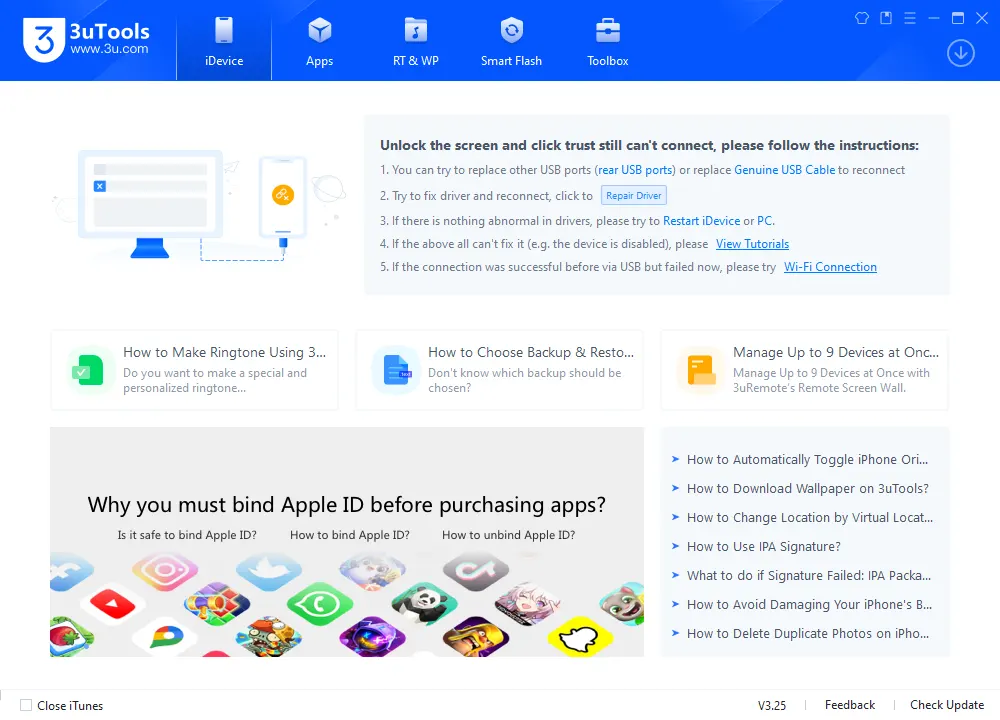
Features worth understanding before installation
Backup is different from file export
Exporting photographs gives you a copy of those photographs; it does not automatically preserve messages, application data, passwords or device settings. Likewise, seeing a backup file on a disk does not prove that you can restore everything you need.
Decide which information matters before choosing a workflow. Apple documents separate iCloud, Mac and PC backup methods. Keep an independently verified backup before a restore or erase operation. See Apple’s backup guide.
Firmware selection is not unrestricted downgrading
A firmware file must be appropriate for the exact device. An old IPSW appearing in a list does not establish that the device can install it now. A restore also differs from an update: read the selected operation’s description, particularly its treatment of user data.
Do not assume a mode named “Quick Flash” preserves data. Mode names are not a backup strategy. If the client does not clearly explain an operation, use Apple’s documented update or restore route instead.
Toolbox features need separate checks
The Toolbox brings together utilities with different requirements. A file-transfer function working on one device says nothing about a location utility, recovery helper or modification tool on that same device. Read the individual function’s supported models and builds before opening it.
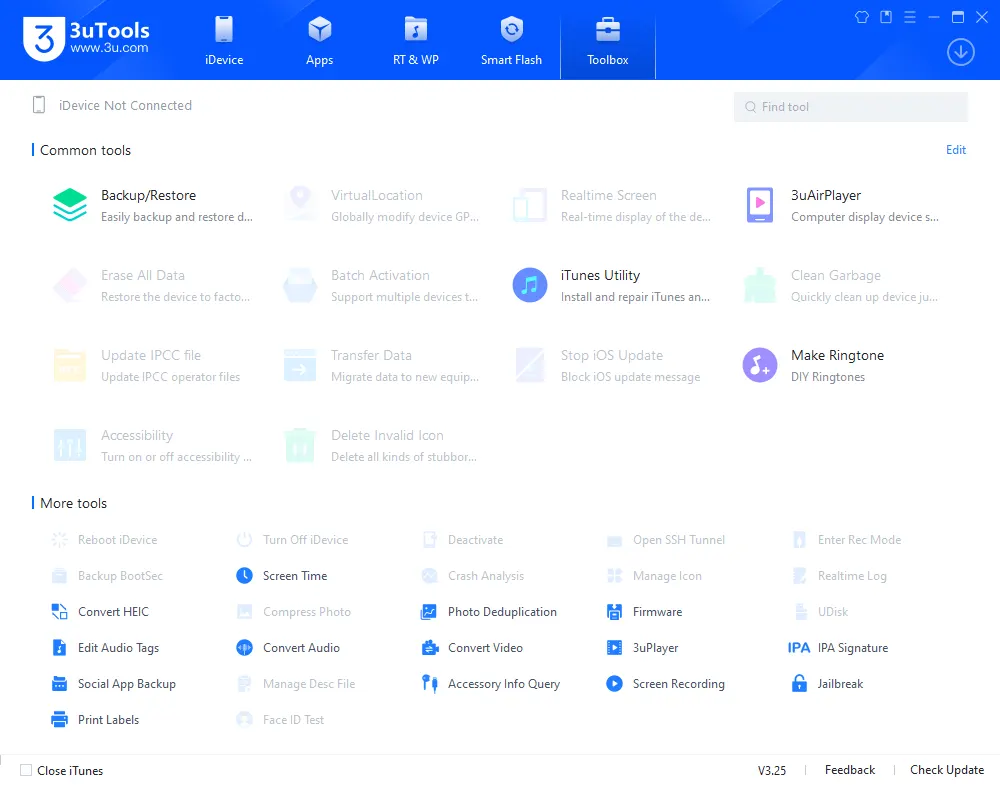
Compatibility and preparation
There are two compatibility questions: whether the desktop client runs on your computer, and whether a particular operation supports your Apple device. Do not treat them as the same thing.
Have these ready:
- The device model and installed software build.
- A working USB data cable and a direct computer port.
- Enough local storage for the intended files and a separate backup.
- Access to the device passcode and the owner’s Apple Account where required.
- A clear task: inspect, export, back up, update or restore.
Use one device-management application at a time during connection troubleshooting. On a shared repair computer, create a separate folder for each job and keep private device identifiers out of screenshots you publish.
Official download and platform selection
The official download page currently lists Windows, macOS and Linux clients. The platform listings checked on September 26, 2026 are:
| Computer | Listed client | Selection detail |
|---|---|---|
| Windows | V9.10 | 32-bit and 64-bit installers |
| macOS | V9.07 | Separate Intel and Apple Silicon packages |
| Linux | V9.02 | DEB and RPM packages |
Use the official 3uTools download page and select the correct platform. This is a publisher landing page, not a direct installer link. Versions can change independently; a higher Windows version does not mean a Mac installation is outdated. Do not confuse the separate 3uAirPlayer product with the device-management client.
After downloading, check the file’s origin and any available signature before running it. Keep security software enabled. If an installer is blocked or its identity cannot be established, resolve that issue before connecting a device with personal data.
First connection and a small transfer test
Install the selected client
Follow the installer for your operating system. Review any additional device-driver installation requests instead of accepting unrelated software. Open the application normally; do not assume every everyday task needs administrator privileges.
Connect and confirm the device
Connect the unlocked device with the data cable. Respond to the device’s computer-trust prompt only if this is a computer you control. Compare the reported model and software with the record you made earlier.
If the phone only charges, change one variable at a time: cable, port, then computer-side drivers. This makes it easier to distinguish a physical connection problem from a client problem.
Test an export before a larger operation
Choose a non-sensitive photograph or another supported file and export it to a known folder. Open the exported file on the computer and confirm that it is usable. Only then expand the operation to a larger selection.
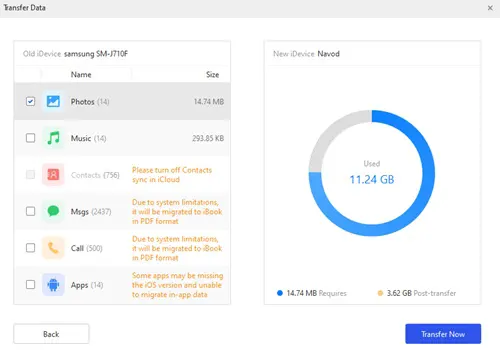
Confirm backup and restore prerequisites
For a backup, record the destination, completion status and any password you set. For a firmware operation, additionally confirm the exact model, the selected build and whether the operation erases data. Do not disconnect the cable while a write is in progress.
Restoring software does not remove the Apple Account association used by Activation Lock. Apple checks that association during activation or recovery; an erased device may still require its owner’s account. Apple explains Activation Lock here.
Troubleshooting by symptom
| Symptom | Useful next check |
|---|---|
| Device charges but is not listed | Try a proven data cable, a direct USB port and the trust prompt. |
| Device appears in Apple software but not 3uTools | Record the client version and investigate client compatibility before changing the phone. |
| Export finishes but files are missing | Check the chosen destination, file filters and a small repeat test. |
| Restore fails | Save the exact error and verify the model/build before retrying; use Apple’s recovery documentation to isolate the problem. |
| Setup requests the previous Apple Account | Ask the owner to resolve Activation Lock; another firmware download is not account recovery. |
Avoid repeating a destructive operation without changing the condition that caused it to fail. An error code, the installed build and a connection log are more useful than a screenshot saying only “failed.”
Video walkthrough
The existing video is retained as a visual companion. Its interface may predate the current desktop releases; the compatibility checks above still apply.
Choosing the right workflow
3uTools can be convenient when you want several management functions in one place. For a straightforward backup or recovery, Apple’s own tools provide a documented baseline. Choose according to the specific task, keep a separate backup and verify the result before moving on to the next operation.
This review does not claim a measured speed advantage over Apple software, universal feature support or a numerical reliability score. Those conclusions would require a repeatable test record that is not available for this revision.