Fix Your Device is Corrupt Error on Android - Complete Guide 2026
When powering on an Android device, encountering the warning “Your device is corrupt. It can’t be trusted and will not boot” (often accompanied by a red exclamation mark or red text banner) halts standard operating system initialization. This critical alert is enforced directly by the hardware bootloader when cryptographic partition validation fails.
Rather than indicating catastrophic hardware storage death, this error usually signals that a recent over-the-air (OTA) update was interrupted, a root utility patched the boot image incorrectly, or a partition hash mismatch tripped Android Verified Boot. On modern devices equipped with seamless A/B dual-slot partitioning, this error can frequently be resolved via Fastboot without wiping personal user files.
Understanding Android Verified Boot (AVB) and the Red State
Android security implements Android Verified Boot (AVB 2.0) to ensure code execution originates exclusively from verified, tamper-free partitions:
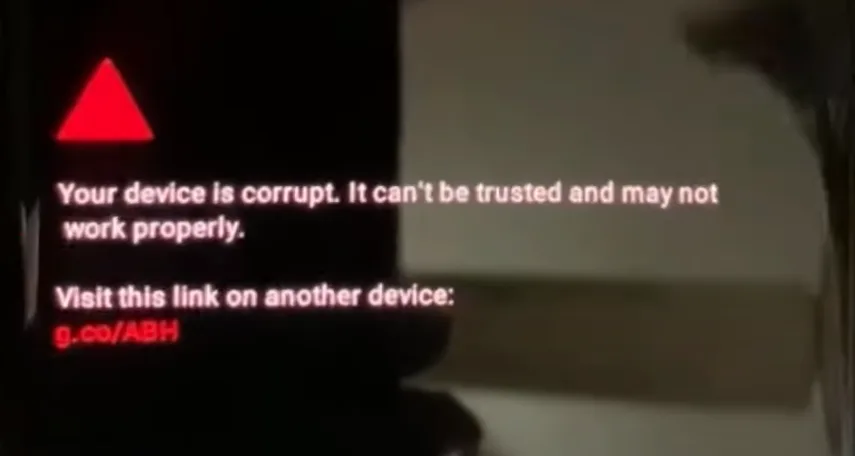
“Your Device is Corrupt” Error Message on Android Phone
During stage-two boot, the primary bootloader evaluates the vbmeta partition, which contains cryptographic signatures for core system partitions (boot, init_boot, dtbo, vendor, system, and product). AVB classifies device boot states into four distinct operational tiers:
| Boot Verification Tier | Display Screen State | Operational Significance |
|---|---|---|
| Green State | Normal OEM Splash | System is locked, verified against OEM root of trust, and fully compliant. |
| Yellow State | Yellow Warning Screen | A custom, self-signed root certificate is installed (custom ROM with user key). |
| Orange State | Orange Warning Screen | Bootloader is unlocked; device permits unverified binaries. |
| Red State | Red Screen (“Device is Corrupt”) | A critical partition fails dm-verity integrity checks or hash verification; device halts boot. |
When an OTA update applies in the background, Android writes the new update to the inactive partition slot (for example, slot _b while running on slot _a). If an unexpected power drop or partition corruption occurs during this transaction, the bootloader attempts to launch the corrupted slot and trips the Red State.
Why Fastboot Slot Switching Resolves the Error Without Data Loss
Modern Android devices implement dual boot partitions:
- Slot A: Holds complete copies of
boot_a,system_a,vendor_a, etc. - Slot B: Holds complete copies of
boot_b,system_b,vendor_b, etc. - Userdata Partition: A single, shared storage block holding all photos, downloads, and app databases.
Because the userdata partition is decoupled from the dual system slots, switching the active boot pointer back to the healthy alternate slot allows the device to boot into the previous working build while keeping personal data completely intact.
Required Preparation and Tools
Before issuing commands, ensure your computer has the official command-line interface configured:
| Utility | Function | Documentation |
|---|---|---|
| Android SDK Platform-Tools | Official Google command-line binaries (fastboot, adb) | Platform Tools Setup |
| Google USB Drivers | Hardware communication drivers for Fastboot mode on Windows | USB Driver Configuration |
Step-by-Step Recovery Procedure
Follow these numbered steps to query your active boot slot and switch to the functional alternate image.
1. Boot your device into Fastboot bootloader mode
Turn the phone off completely. If the device is trapped in a reboot loop, hold Power + Volume Down simultaneously as the device restarts until the Fastboot (Bootloader) interface appears on screen. The screen typically displays the green Android robot or technical device specifications.
2. Verify connection using Android Platform Tools
Connect the phone to your computer using a certified USB cable. Open Command Prompt or PowerShell in your platform-tools directory and execute:
fastboot devicesConfirm that your device serial number appears in the terminal output alongside the word fastboot. If the terminal displays “waiting for any device”, check Windows Device Manager to ensure the Android Bootloader Interface driver is correctly installed.
3. Query active A/B slot variable
In the terminal window, run:
fastboot getvar current-slotThe bootloader returns the currently active slot variable:
current-slot: a(or_a)current-slot: b(or_b)
This identifies which specific slot is currently triggering the AVB corruption lock.
4. Switch active execution to alternate slot (High Risk)
Directing the bootloader to switch its startup pointer to the alternate slot can restore functionality if the inactive slot is healthy. However, this is a high-risk operation on modern devices with Anti-Rollback Protection (ARB).
[!CAUTION] Do not blindly switch slots without knowing what bootloader is installed in the alternate slot. Google warns that the May 2025 update or later for Pixel 6/6 Pro/6a and Pixel 8/8 Pro/8a increases the bootloader anti-rollback version. After that update has booted successfully, an older Android 15 build must not be flashed or booted from the inactive slot. The exact release build differs by model, so use Google’s current factory-image warning rather than one build number for every device.
If you are unsure of the firmware version on the inactive slot, skip this step entirely and proceed to “Secondary Recovery: Reflashing Official Factory Firmware” below.
If you are certain the inactive slot contains a compatible, verified bootloader:
- If current slot is
a, execute:fastboot set_active b - If current slot is
b, execute:fastboot set_active a
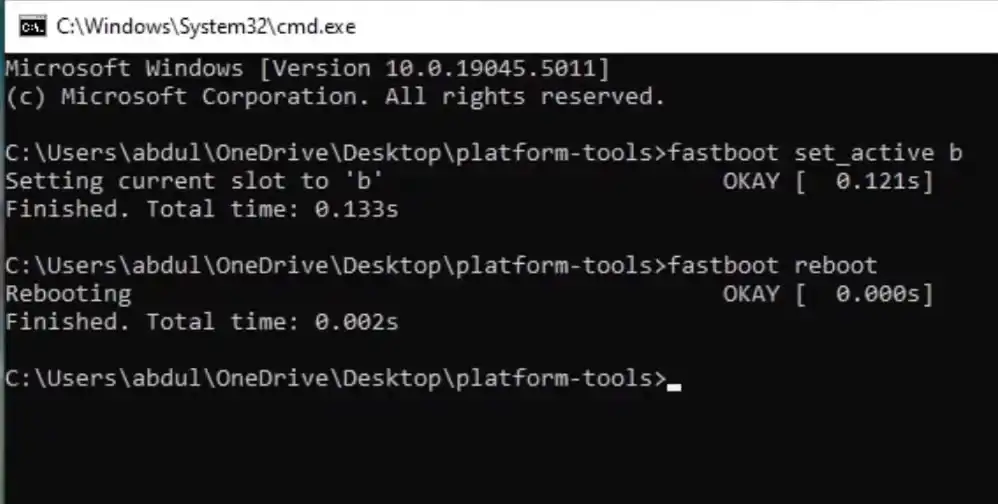
Change Active Slot Command to Fix “Your Device is Corrupt” Error
The console will return Setting current slot to 'b'... OKAY confirming that the non-volatile boot configuration variable has updated.
5. Reboot and verify system integrity
Restart the handset by issuing:
fastboot rebootThe device will restart. If the alternate slot is complete, compatible, and correctly signed, it may boot normally. If the warning remains, stop switching slots and use the manufacturer’s documented recovery path. Once a working system loads, back up important data before attempting another update.
Secondary Recovery: Reflashing Official Factory Firmware
If both slots return a verification error, slot switching has not resolved the problem. The next recovery option on an unlockable device is an official signed factory image; hardware faults, an unavailable OEM unlock path, or incompatible rollback state can require manufacturer service instead:
- Download the official factory firmware package for your exact model (e.g., from Google Developers Factory Images for Pixel, or official manufacturer repositories for OnePlus or Xiaomi).
- Extract the factory archive directly into your
platform-toolsdirectory. - If preserving personal data is critical, open
flash-all.bat(Windows) orflash-all.sh(Linux/macOS) in a text editor and remove the-wwipe flag from thefastboot updatecommand. Note: Removing a wipe flag is not a general guarantee of safe data retention; if the underlying userdata partition is corrupt or incompatible with the firmware version, the device may still require a factory reset. - Execute the manufacturer-provided flash script while in Fastboot mode. A successful flash can restore signed partitions, but it does not diagnose storage failure or guarantee a permanent repair.
Video Demonstration
Watch this recorded service session demonstrating Fastboot connection verification and slot switching on a Google Pixel test unit: