SamFw Tool v4.9 Archive: Features and Compatibility Limits
SamFw Tool is a third-party Windows utility for Samsung device servicing. This page documents the historically pinned v4.9 release; it does not promise that v4.9 is the current version in 2026.
Its interface advertises CSC, device-information, firmware, reboot, and account-lock-related operations. Availability depends on the exact SamFw release, Galaxy model, firmware, patch, carrier, device state, and server-side support. A menu item is not proof that an operation applies.
Architectural Overview and Capabilities
SamFw Tool interfaces with Samsung Galaxy devices across several operating modes, depending on the desired operation:
- MTP Mode: Employs Media Transfer Protocol commands to query hardware configurations, inspect software build levels, and send initialization strings.
- AT / Diagnostic Mode: Communicates through Samsung modem serial ports (often initialized via the
*#0*#test matrix) to issue direct administrative instructions. - Download Mode (Odin Protocol): Interfaces with Samsung’s bootloader to flash official firmware partitions, reset download counters, or perform factory recovery wipes.
- ADB Shell Mode: Executes automated shell scripts to modify device parameters once debugging is authenticated.
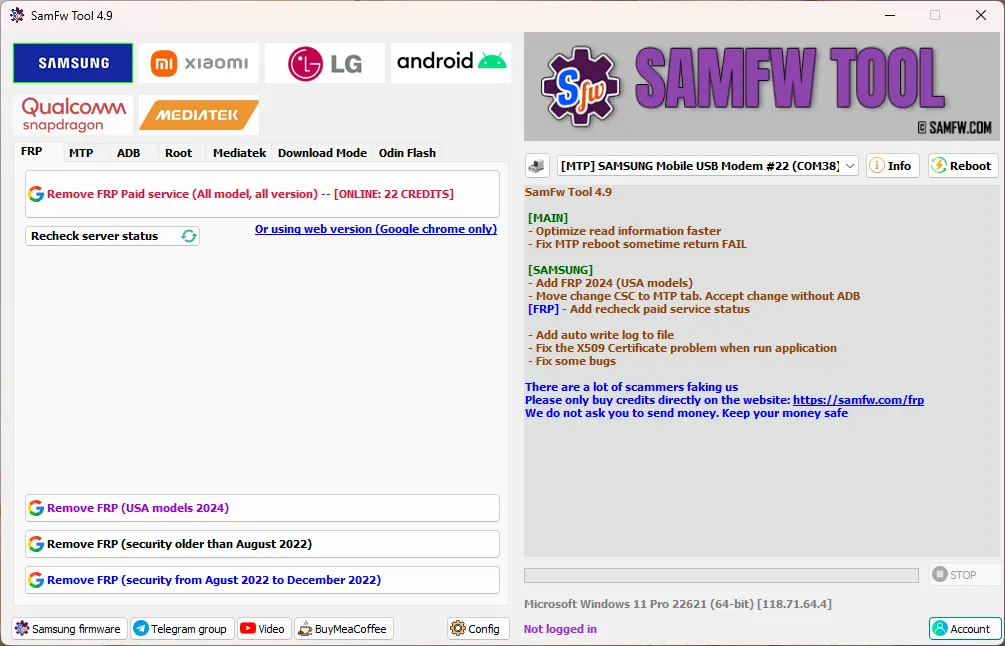
SamFW Tool Main Interface with Features
Core Functional Modules
| Functional Module | Primary Use Case | Hardware Protocol |
|---|---|---|
| CSC Changer | Request a regional firmware carrier-code change; backup and reset behavior are combination-specific | AT / ADB Serial Handshake |
| FRP Management | Resolve lockouts on legitimately owned devices after credential loss | Emergency Test Mode (*#0*#) |
| Firmware Flashing | Flash official tar.md5 binaries (AP, BL, CP, CSC) | Samsung Download Mode |
| Knox & Diagnostics | Inspect Knox trip status (0x0 vs 0x1) and hardware battery cycles | MTP Diagnostic Query |
| Reboot Controls | One-click reboot to Download Mode, Recovery, or EDL mode | ADB / Fastboot Protocol |
Tool Distribution and Specifications
SamFw Tool is distributed as a portable Windows application that does not require an installer. It executes directly from an extracted folder once prerequisites are satisfied:
| Specification Parameter | Technical Detail |
|---|---|
| Application Version | SamFw Tool v4.9 (historical pinned release; current status not asserted) |
| Target Operating System | Windows 7, Windows 8, Windows 10, Windows 11 (32-bit and 64-bit) |
| Distribution Archive | ~150 MB ZIP Archive |
| Required Dependency | Samsung Android USB Drivers & Microsoft .NET Framework |
| Official Publisher | SamFw Development Team |
Publisher page retained for version and download checks:
Confirm the current release, file hash/signature, and changelog on the publisher’s site before downloading. The stable GSM6 URL retains “2025” for compatibility, but the article is now explicitly a v4.9 archive.
Ensure your host PC has the official Samsung Android USB Drivers installed prior to launching the application.
Understanding Security Software False Positives
Mobile device servicing utilities often trigger heuristic detection alerts from endpoint protection software like Windows Defender. While these alerts sometimes occur because the utility interacts directly with hardware serial ports and bundles scripts designed to bypass Android security, do not automatically assume they are false positives. You must review the specific threat detection flagged by your antivirus software.
To maintain security hygiene, never download SamFw Tool from unverified third-party file lockers. Always verify that you are obtaining the archive directly from the official developer portal. If you cannot independently verify the file’s provenance, proceed only within an isolated sandbox environment.
Step-by-Step Operational Guide
Follow these numbered instructions to set up SamFw Tool and execute device maintenance tasks safely.
1. Download SamFw Tool and install Samsung USB drivers
After verifying the current publisher record and package integrity, extract the selected SamFw archive to a dedicated folder on your Windows computer (e.g., C:\SamFwTool). Install the current signed Samsung Android USB Driver package and restart your computer to ensure virtual COM ports bind cleanly.
2. Launch SamFw Tool as administrator
Right-click the SamFwTool.exe binary and select Run as administrator. Running with administrative privileges prevents Windows from blocking virtual modem and serial port communication during device handshakes.
3. Connect the Samsung device in MTP or diagnostic mode
Power on your Samsung device and connect it to your PC using an authentic USB-C data cable. If performing FRP recovery or AT-mode CSC changes, tap Emergency Call on the phone screen and dial *#0*# to open the hardware test matrix.
4. Select target maintenance operation
In the SamFw Tool interface:
- Navigate to the Samsung tab.
- Choose your sub-tab based on the desired task: Test Mode, MTP, or Download Mode.
- For regional reconfiguration, choose Change CSC and select your desired regional code from the dropdown index.
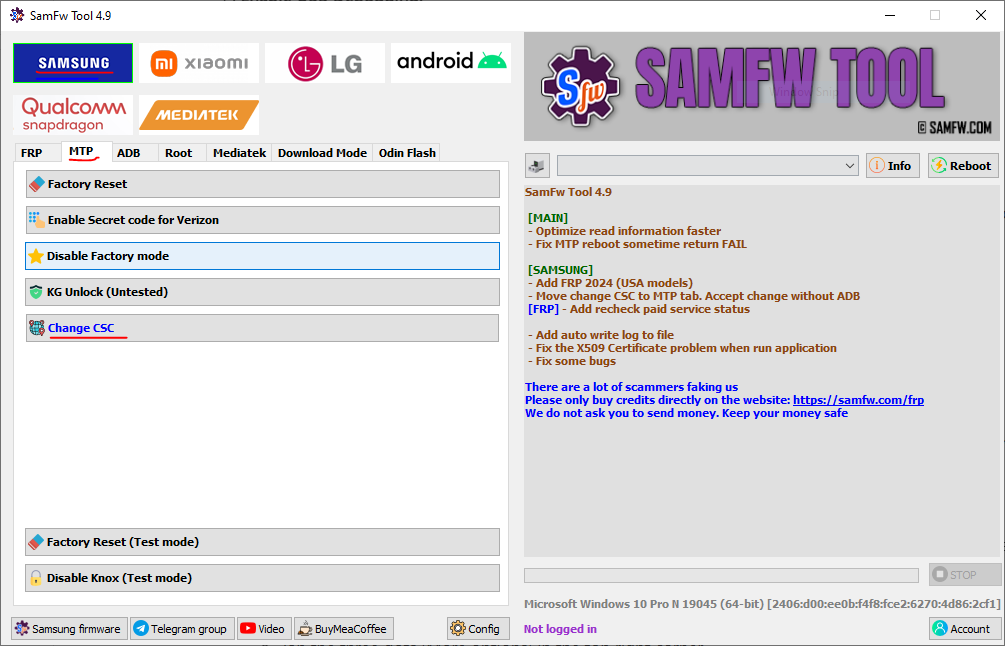
SamFW Tool CSC Change Screen
For an in-depth breakdown of regional codes and their native capabilities, refer to our detailed Samsung CSC Change Guide.
5. Authorize USB debugging and verify device reboot
Watch your phone display during command execution. An Allow USB debugging? authorization popup will appear. Check the box for Always allow from this computer and tap Allow.
The tool may transmit diagnostic commands and may request a restart, depending on the chosen operation. A progress or success message does not prove that FRP, CSC, Knox, data, carrier features, or other device state changed as intended. Disconnect only at the point documented for the exact operation.
Video Demonstration
Watch this recorded service session demonstrating SamFw Tool setup, device communication, and menu navigation: