MediaTek USB Drivers: Download and Windows Installation Guide
MediaTek USB drivers allow a Windows computer to communicate with smartphones and tablets powered by MediaTek (MTK) processors. They are essential for low-level maintenance, firmware flashing through SP Flash Tool, and hardware recovery when a device will not boot into Android. Installing the driver establishes the virtual serial COM port required for computer-to-phone data transfer during pre-boot states.
Connecting an MTK device in an operational Android state differs from servicing a powered-off unit. Understanding these connection stages helps prevent misdiagnosing cable, driver, or hardware issues.
Connection modes on MediaTek devices
MediaTek chipsets use distinct operating modes depending on device power and software state:
| Mode | Device state | Primary function | Windows device identifier |
|---|---|---|---|
| PreLoader USB VCOM | Powered off, brief connection window | Firmware flashing and partition recovery via SP Flash Tool | MediaTek PreLoader USB VCOM Port (COMx) |
| Boot ROM (BROM) | Hardware low-level recovery state | Deep recovery, emergency unbricking, auth bypass | MediaTek USB Port (COMx) or MTK USB Port |
| Fastboot | Bootloader interface mode | Partition flashing via standard Android command line | Android Bootloader Interface |
| ADB / MTP | Android OS fully booted | File transfer, system debugging, and app development | MediaTek Composite USB Device / Android ADB Interface |
The most critical mode for repair work is PreLoader USB VCOM. When a powered-off MTK phone is connected via USB, it initializes this port for approximately two to three seconds. If an active flashing tool does not send a handshake command, the phone exits this mode and begins standard battery charging.
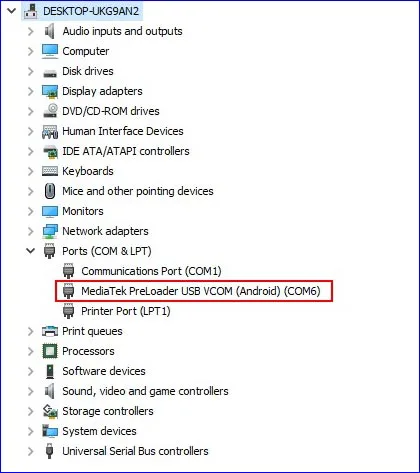
MediaTek PreLoader USB VCOM COM Port displayed under Ports (COM & LPT) in Windows Device Manager.
Operating system compatibility and requirements
The archive labels itself v5.2307 and contains drivers intended for several Windows generations. This audit did not verify a MediaTek publisher signature or a complete Windows 7–11 compatibility matrix; inspect the INF catalog/signature and use the exact device hardware ID.
Before installing the driver, confirm the following prerequisites:
- Administrative privileges: Windows requires administrator rights to install hardware INF files and register virtual COM ports.
- Quality USB data cable: Many consumer USB cables only support battery charging. Use a verified data-capable cable, preferably plugged directly into a rear motherboard USB 2.0 port on desktop computers.
- Close conflicting software: Background phone synchronization software, Android emulators, and virtual machine USB filters can intercept COM ports. Close these applications before flashing.
- Android SDK Platform-Tools: The MTK driver provides COM and VCOM connectivity; standard fastboot and adb utilities require Android SDK Platform-Tools.
MediaTek USB driver package download
The third-party archive below claims to contain a v5.2307 installer and INF files. A reachable MEGA link does not authenticate the publisher, version, signature, or supported hardware IDs.
| Detail | Specification |
|---|---|
| Package name | MediaTek USB Driver v5.2307 |
| Driver version | 5.2307 |
| Supported platforms | Windows 11, 10, 8.1, 7 (x86 / x64) |
| Archive file size | 8.87 MB |
| Format | ZIP Archive (Auto-installer + INF files) |
| Download link | Download MediaTek USB Driver v5.2307 (MEGA) |
If you service Qualcomm or Unisoc chipset devices as well, refer to our Qualcomm USB Drivers setup guide and Spreadtrum/Unisoc driver guide.
Install MediaTek USB drivers on Windows
Follow these steps to install the driver package using the built-in automated installer.
1. Extract the driver archive
Download the ZIP archive to your local computer. Right-click the file and select Extract All to unpack its contents into a standard folder. Avoid running the setup executable directly from inside the compressed archive.
2. Run the automated installer
Open the extracted directory, locate InstallDriver.exe, right-click the file, and select Run as administrator. When prompted by Windows User Account Control (UAC), click Yes to allow installation.
3. Complete driver setup
A command prompt console window will open and register the required INF files and virtual COM port drivers for 32-bit and 64-bit architectures. Allow the script to complete without closing the window. When prompted with “Press any key to continue”, press any key to finish setup.
4. Verify the device connection
To confirm that the driver functions correctly:
- Open Device Manager by pressing
Win + Xand selecting Device Manager. - Expand the Ports (COM & LPT) category.
- Power off your MediaTek device completely.
- Connect the USB cable to the PC and phone while keeping the phone turned off.
- Observe Device Manager:
MediaTek PreLoader USB VCOM Portshould appear momentarily before transitioning to charging, confirming proper driver binding.
Alternative manual installation via Device Manager
If the automated installer does not register the driver due to corporate security policies or customized Windows editions, install the INF files manually:
- Press
Win + Xand select Device Manager. - Click on your computer name at the top of the tree, select Action from the menu, and choose Add legacy hardware.
- In the wizard, select Install the hardware that I manually select from a list (Advanced) and click Next.
- Select Show All Devices and click Next.
- Click Have Disk…, click Browse, and navigate to the extracted driver folder.
- Open the
Driversubfolder, selectusb2ser.inf(or the INF file matching your Windows version), and click Open. - Select MediaTek PreLoader USB VCOM Port from the list, click Next, and complete the installation wizard.
- Restart your computer to initialize the newly registered driver.
Troubleshooting MTK connection and port errors
PreLoader port disconnects after 2 seconds
This is normal device behavior, not a driver malfunction. The phone waits briefly for a flashing software handshake. If using SP Flash Tool, always click Download in the software first, and only then connect the powered-off phone to the USB cable. The tool will capture the active COM port immediately.
STATUS_BROM_CMD_SEND_DA_FAIL in SP Flash Tool
This error signifies that the computer failed to transmit the Download Agent (DA) file to the phone’s temporary RAM. Common resolutions:
- Verify that you selected the correct DA file (
MTK_AllInOne_DA.binor a device-specific secure DA file). - Connect the phone directly to a rear motherboard USB port rather than an external hub.
- Replace the USB cable with a verified data cable.
Device Manager displays MT65xx Android or Unknown Device
If Device Manager shows an MT65xx Android entry with a yellow exclamation mark, Windows detected the hardware ID but failed to link the driver:
- Right-click the flagged entry and select Update driver.
- Choose Browse my computer for drivers.
- Direct Windows to your extracted driver directory and click Next.
Connection drops during firmware flashing
A disconnection during flashing can indicate power instability. Ensure the phone’s battery has at least 50% charge before beginning. Avoid front-panel PC ports, which often suffer from voltage drops under sustained data loads.
Video walkthrough
The video below demonstrates using MediaTek USB COM port communication during service operations on a Samsung tablet with SamFlash.
Conclusion and references
A correctly installed MediaTek USB driver establishes the foundation for firmware updates and device maintenance. For tool-specific setup and related procedures, consult the following references: